Image Guides
Get HEX Codes From Any Photo — Free Palette Tool
Extract HEX color codes from any photo — build a palette for design, decor, or social posts. Free online color picker, no upload.
NeedAnyToolPublished Updated 2 min read
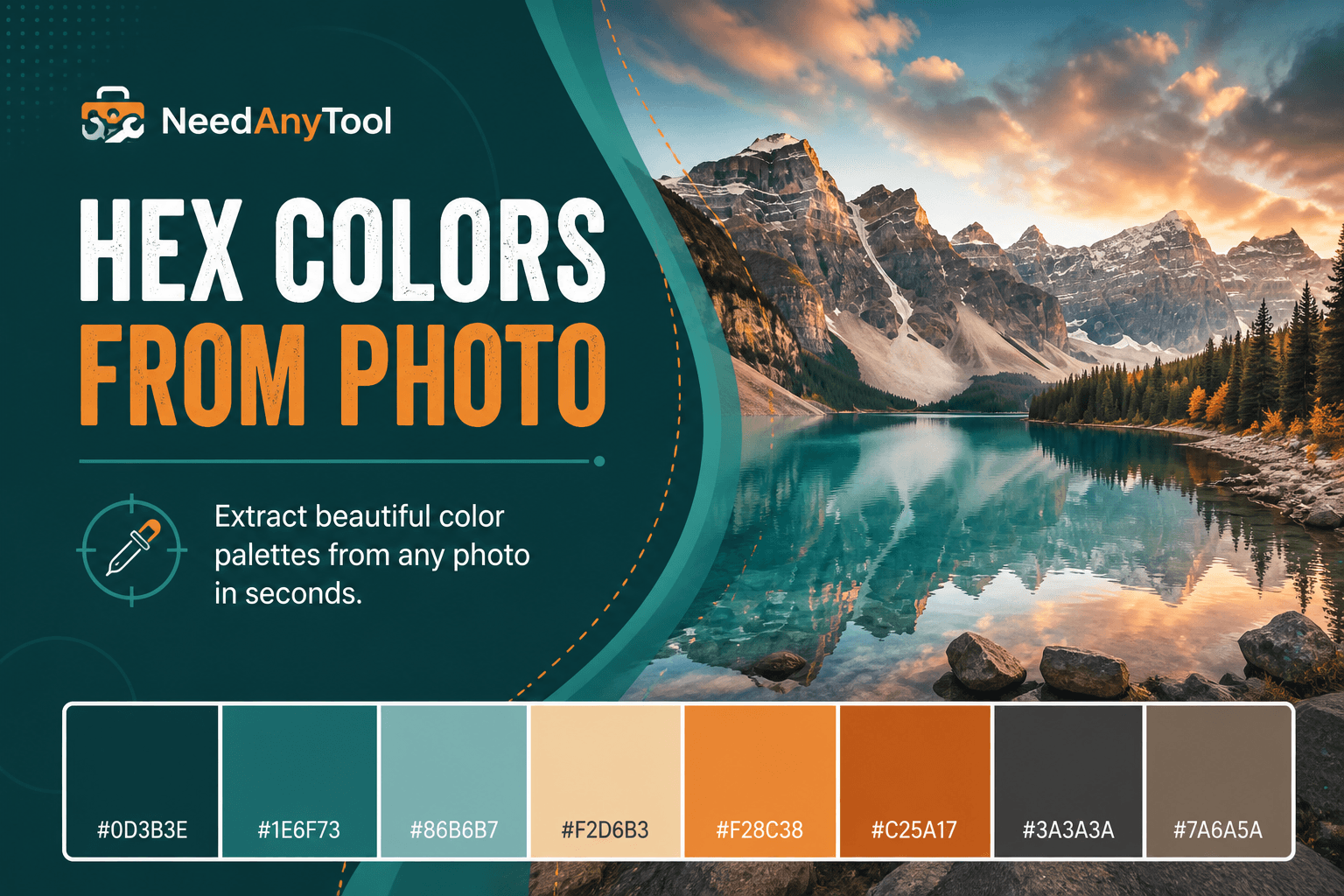
Generic colour swatch books are fine until you're redecorating a room around a tile floor you photographed last weekend, or building an Instagram grid that should feel like one cohesive mood instead of six random filters. Real-world photos give you palettes that already harmonize — because nature and good design did the hard work.
Color Picker turns any loaded image into copy-paste HEX values. Working from a logo instead of a lifestyle photo? Pick colors from logo covers the brand-specific workflow.
Places this comes in handy
Room makeovers where furniture already exists and you need paint that doesn't clash. Slide decks that echo a conference venue photo. Web accent colours pulled from product photography so the site and the photos feel like one brand. Instagram grids where one hero shot sets the tone for everything else.
Building a palette that works
Load a well-lit photo — heavy filters on the source skew your samples. Click dominant regions: sky, foliage, the accent object you care about. Three to five HEX codes is enough for most UI palettes.
Think in roles. Background neutral from the largest muted area. Primary accent from the boldest saturated region. Text dark from a shadow or dark object — not from compression-black JPEG artifacts, which read as #000000 but aren't a real colour in the scene.
Test combinations on a mock button or slide before you commit to a whole redesign.
Tie it into your editing workflow
Grade other photos with Filters using your extracted accents as a reference point. Collage grids look intentional when every image shares one pulled colour instead of six competing hues.
Screenshots work too — handy for UI redesign audits where you want to sample existing chrome before you change it. Copy HEX values into your design tool manually; most teams document palettes in brand notes or a shared Figma file.
Photos never leave your browser.
FAQ
Does JPG compression affect the samples?
Yes. PNG or high-quality JPG gives more accurate reads.
How many colours should I pull?
Three to five covers most UI needs. More than that and you're probably overthinking it.
Can I export a palette file directly?
Copy HEX manually into your design tool. Document in brand notes or a style guide.
Does this work on screenshots?
Absolutely — great for auditing existing UI colours before a redesign.
Related guides
Image Guides
Pick Colors from a Logo Online
Pick colors from a logo or image — get HEX and RGB codes for brand guidelines. Free color picker in your browser, no upload.
Image Guides
How to Convert an Image to Grayscale (Black & White)
How to convert an image to grayscale online — turn a color photo black and white in your browser. Desaturate JPG/PNG with no upload.
Image Guides
Blur an Image Online Free (Soft Focus)
Blur an image online free — soft focus or Gaussian-style blur for photos in your browser. Obscure details without uploading.