PDF Guides
Flatten PDF Form Fields Online — Lock Edits
Flatten PDF form fields, annotations, and visual signatures into permanent page content in your browser. Lock documents and prevent layout shifts with zero uploads.
NeedAnyToolPublished 3 min read
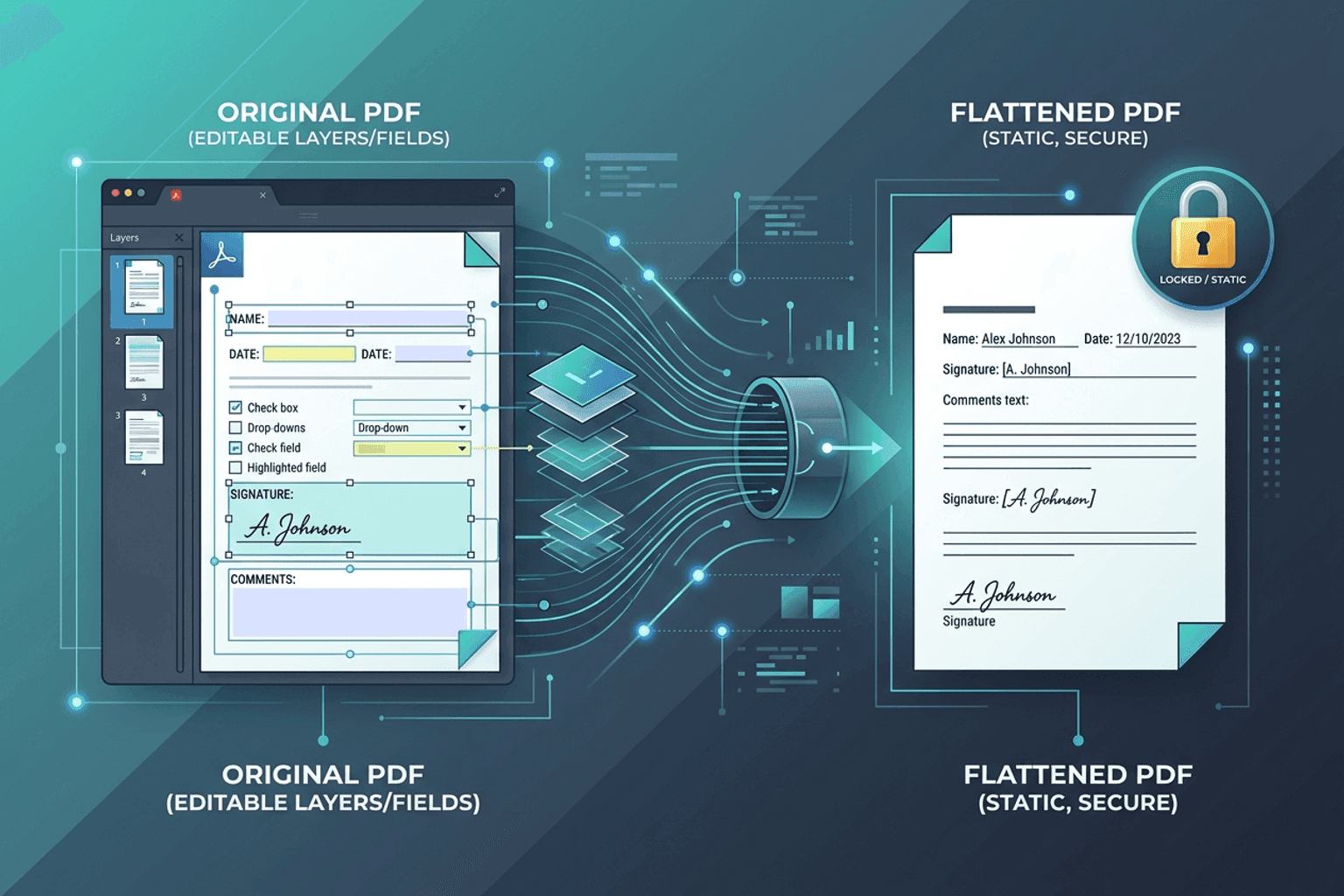
You filled out an employment contract, signed it with a digital signature stamp, and emailed it over. But when the HR team opened the PDF, the form fields showed up blank — or worse, your signature was floating three inches above the signature line.
That happens because interactive PDF forms and annotations live in a separate interactive layer floating above the actual document page. Different PDF readers (Apple Preview, Adobe Acrobat, mobile viewers, web browsers) render form widgets in completely different ways.
Flatten PDF merges those interactive form fields, checkboxes, text boxes, and signature stamps directly into the underlying page graphics. Once flattened, the document becomes a static, unified page that renders identically on any device or printer.
Why interactive PDFs break across viewers
PDFs are layered containers. When you fill out a PDF in your browser or an editor:
- Page Content Layer: The static text, backgrounds, and vector lines that make up the original template.
- AcroForm / XFA Layer: Interactive text boxes, dropdowns, and checkboxes that rely on reader software to calculate and display values.
- Annotation Layer: Sticky notes, visual stamps, highlights, and draw strokes.
If a government portal or older printing press doesn't support interactive form fields, it simply skips the interactive layer. That is why uploaded job applications or visa forms sometimes arrive with missing data.
Flattening locks everything down so nothing can shift, disappear, or be accidentally wiped.
Flattening vs Protecting vs Redacting
It is common to confuse these three operations, but they solve completely distinct document problems:
| Operation | What it does | Best used for |
|---|---|---|
| Flatten PDF | Merges interactive fields and annotations into static background graphics. | Locking completed forms, preventing accidental edits, fixing print alignment. |
| Protect PDF | Encrypts the entire file with a user password. | Preventing unauthorized people from opening the document. |
| Redact PDF | Permanently scrubs and blacks out confidential data. | Removing tax IDs, bank numbers, and secrets from public records. |
Flattening does not password-protect the file. It simply turns dynamic widgets into regular page graphics.
How to flatten a PDF in your browser
- Open Flatten PDF.
- Choose your PDF file from your computer or phone.
- The browser engine renders each page and bakes the interactive form layer into static vector and raster elements.
- Download the flattened PDF.
- Open the downloaded file in any basic viewer to confirm that text boxes can no longer be edited or selected as dynamic form widgets.
If you also need to trim extra blank pages before sending, run the file through Delete pages or Extract.
Tips for the best flattening results
- Save a backup master copy: Flattening is a one-way operation. Once you flatten a form, you cannot click into individual fields to change the typed text later. Always keep your editable master copy in case you need to update dates or numbers.
- Check signatures before flattening: Make sure your signature stamp or drawn name is positioned exactly where you want it with Sign PDF before baking it in.
- Shrink large scans afterwards: If your flattened document contains high-resolution embedded scans, pass it through Compress PDF to keep it under email attachment thresholds.
Flatten PDF processes the entire document locally in your browser. Your confidential contracts, legal paperwork, and medical records are never uploaded to any remote server.
FAQ
Can someone unflatten a PDF to edit the fields again?
No. Flattening bakes the form text directly into the page stream. A recipient would have to use a graphic editor or white-out patch to modify it, just like modifying a scanned paper document.
Does flattening change the visual resolution or font quality?
No. Text and vector lines remain crisp vector elements. It does not blur the document into a low-quality screenshot.
Do I need to register or pay to flatten documents?
No. All NeedAnyTool document utilities run freely on-device without account signups or usage quotas.
30 on-device PDF tools — nothing uploaded.
Related guides
PDF Guides
Sign a PDF Online Without Printing or Uploading
Sign a PDF online free — draw an electronic signature without printing or uploading. E-sign PDF forms in your browser with NeedAnyTool.
PDF Guides
How to Merge PDF Files Without Uploading
How to merge and combine PDF files in your browser with no upload. Private on-device merge — reorder files, download one document.
PDF Guides
How to Add a Watermark to a PDF Online
Add a watermark to a PDF online — stamp Draft, Confidential, or a logo across pages. Free PDF watermark tool in your browser, no upload.