PDF Guides
How to Merge PDF Files Without Uploading
How to merge and combine PDF files in your browser with no upload. Private on-device merge — reorder files, download one document.
NeedAnyToolPublished Updated 3 min read
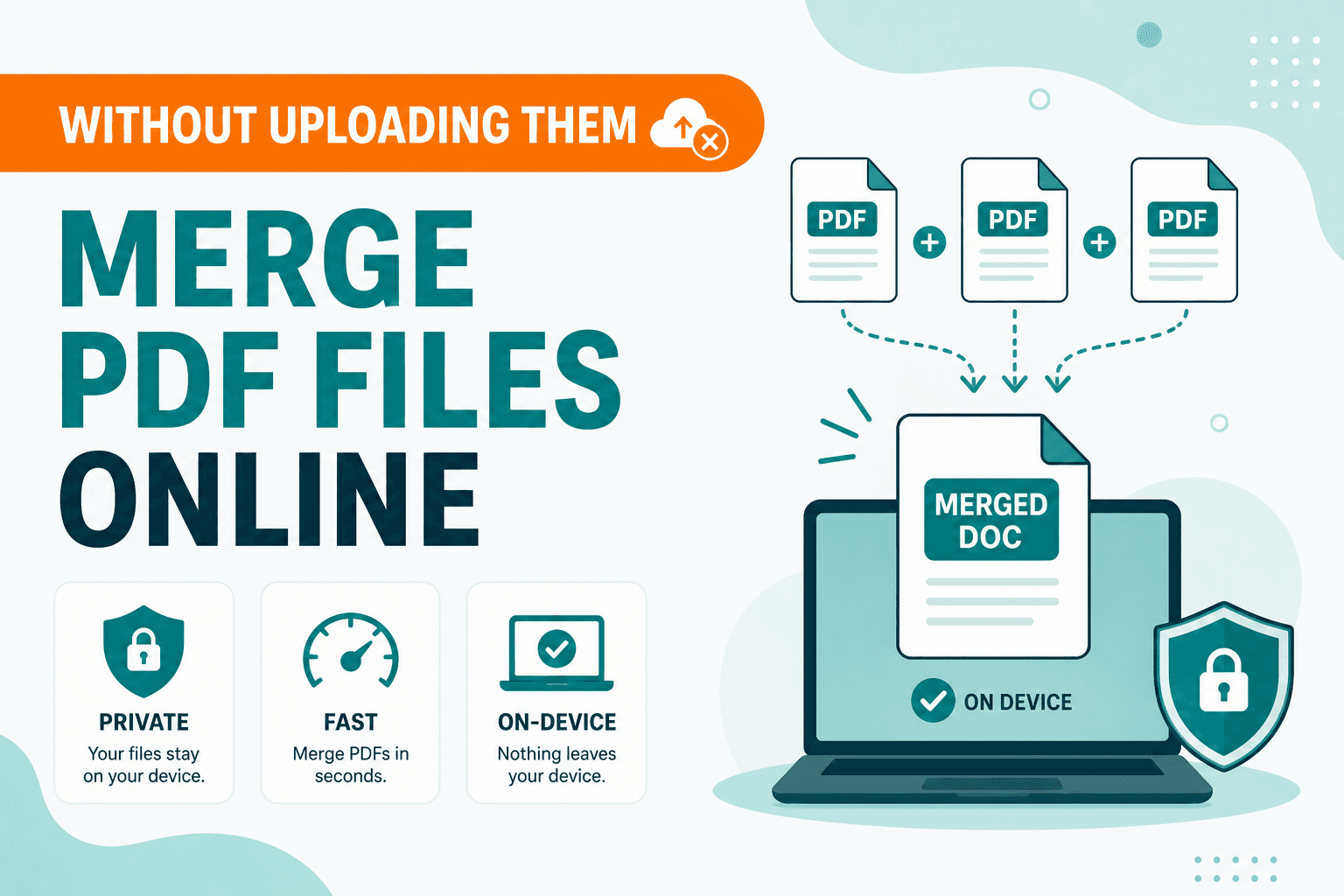
Need to combine PDFs without sending confidential files to a random upload site? Merge PDF joins multiple PDFs in your browser — free, private, no account. Pick files, set order, merge, download. Nothing is uploaded to a NeedAnyTool server.
“Merge PDF” and “combine PDF” describe the same job: turn separate files into one document. The tool reads the files you select, concatenates their pages in the order you choose, and lets you download the result.
Why bother merging?
A single PDF is easier to send, print, and archive than a folder of loose files. Typical cases: a cover letter plus a scanned ID plus a form; chapters or weekly reports that need to become one packet; invoices or statements for the same recipient; homework, meeting packs, or signed pages that belong together.
Uploading those files to a random "free merger" is a poor fit when the documents are confidential, large, or sitting on an unreliable connection. A local merge skips that extra hop entirely.
How to merge with NeedAnyTool
Open Merge PDF. Add two or more PDFs from your device. Drag them into the sequence you want in the final file. Run merge, then download the result.
Password-protected inputs need to be unlocked first — otherwise they'll be rejected. If a page is sideways, fix rotation with Organize before or after the merge.
Step by step:
- Open Merge PDF.
- Add the PDFs you want to combine.
- Drag files so the page order matches the document you intend to send.
- Merge, then download the combined PDF.
- Open the download and skim the first and last pages of each original file so nothing landed in the wrong place.
If the combined file is too large for email, follow with Compress PDF rather than starting over.
What "browser-based" actually means here
For NeedAnyTool's current Merge PDF tool, processing is local. Your browser reads the files you choose, builds the new PDF in memory, and writes a download. The file bytes are not uploaded to NeedAnyTool for this tool.
That's different from mergers that store a temporary copy on someone else's server. Local processing still uses your device's memory — very large batches may be slower on a phone than on a desktop. There's no fixed server quota because there's no merge API for this tool.
After you close the tab, NeedAnyTool doesn't keep a copy of the PDFs you selected. Keep your own download if you need the result later.
Common use cases
- Email one attachment instead of five — merge, then compress if the mailbox limit is tight.
- Assemble a packet from scans made on different days.
- Add a cover page that already exists as its own PDF.
- Combine signed pages with the rest of an agreement (visual signatures stay as they are in the source files).
Merge combines separate files. To reorder pages inside one PDF, use Organize. To pull a subset of pages out, use Extract or Split.
On Android, PDF Toolkit: Reader & Tools can also merge PDFs on the device. Use whichever surface matches where the files already are.
Ready to combine files? Open Merge PDF and run the merge on your device.
FAQ
Do the PDFs leave my computer?
Not for the current web Merge PDF tool. The browser reads local files and writes a local download.
Is there a limit on how many files I can merge?
No server-side file quota. Limits come from your browser and available memory. Large scans are easier on a desktop.
Is merge the same as combine?
Yes. Searchers often say “combine PDF” for the same action as “merge PDF” — joining files into one document.
What if a file is password-protected?
Unlock it first with a password you're authorised to use, then merge. Encrypted inputs are rejected until they can be read.
Merge vs organize — which should I use?
Merge joins separate PDFs. Organize reorders and rotates pages inside a single PDF.
30 on-device PDF tools — nothing uploaded.
Related guides
PDF Guides
Flatten PDF Form Fields Online — Lock Edits
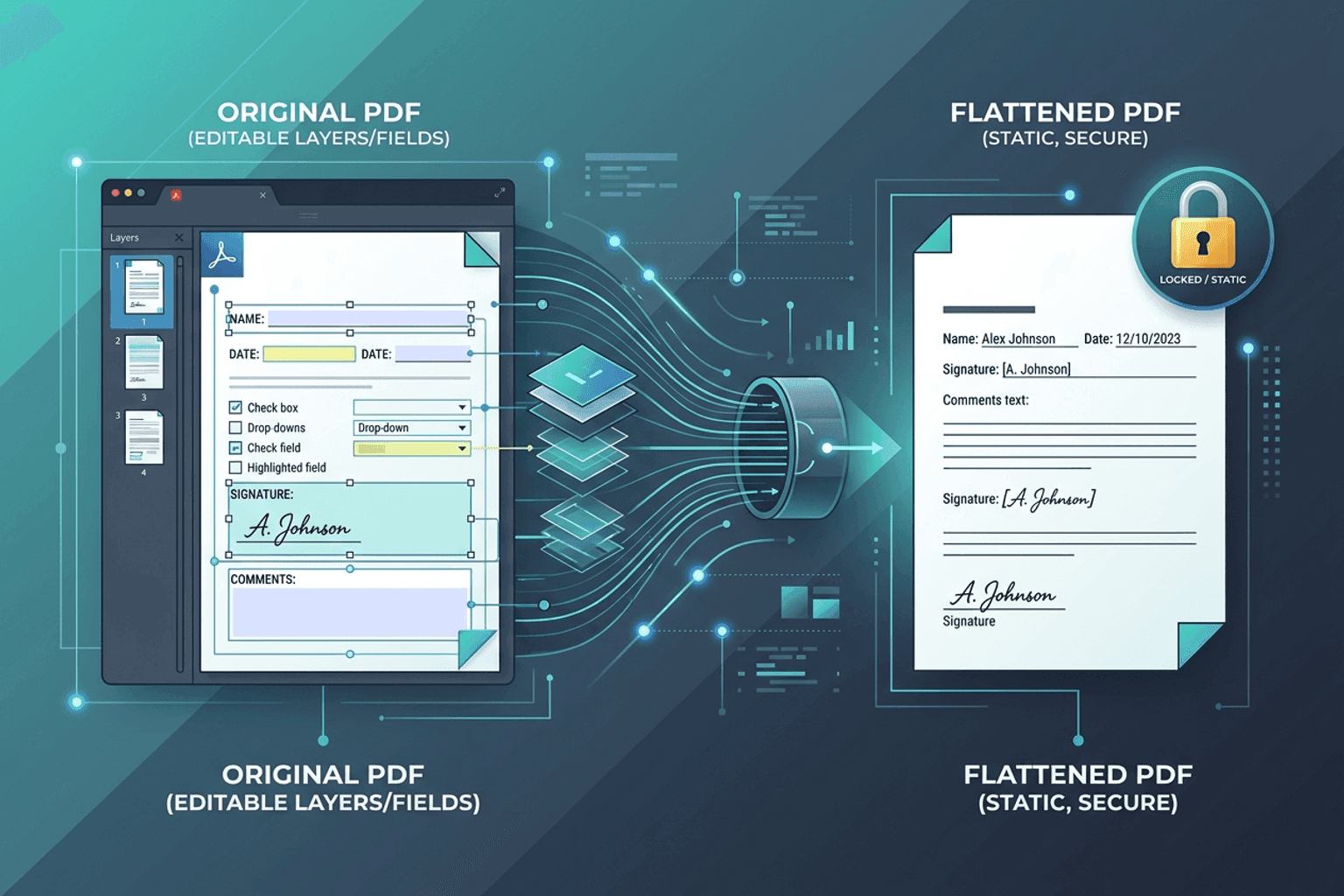
Flatten PDF form fields, annotations, and visual signatures into permanent page content in your browser. Lock documents and prevent layout shifts with zero uploads.
PDF Guides
Add Text to a PDF Online
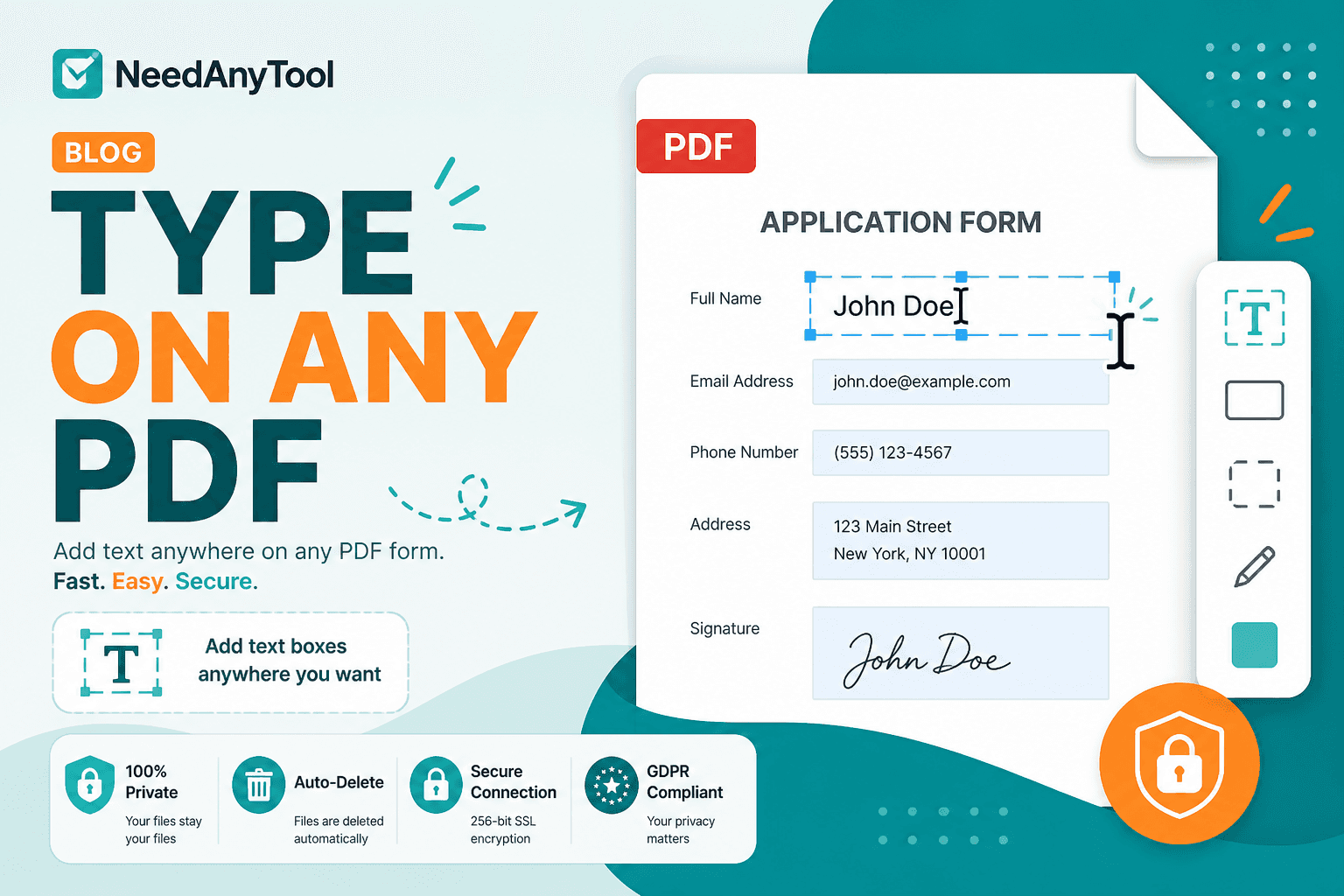
Add text to a PDF in your browser — names, dates, addresses, and notes placed exactly where you need them. No upload required.
PDF Guides
Convert PDF Pages to JPG Online
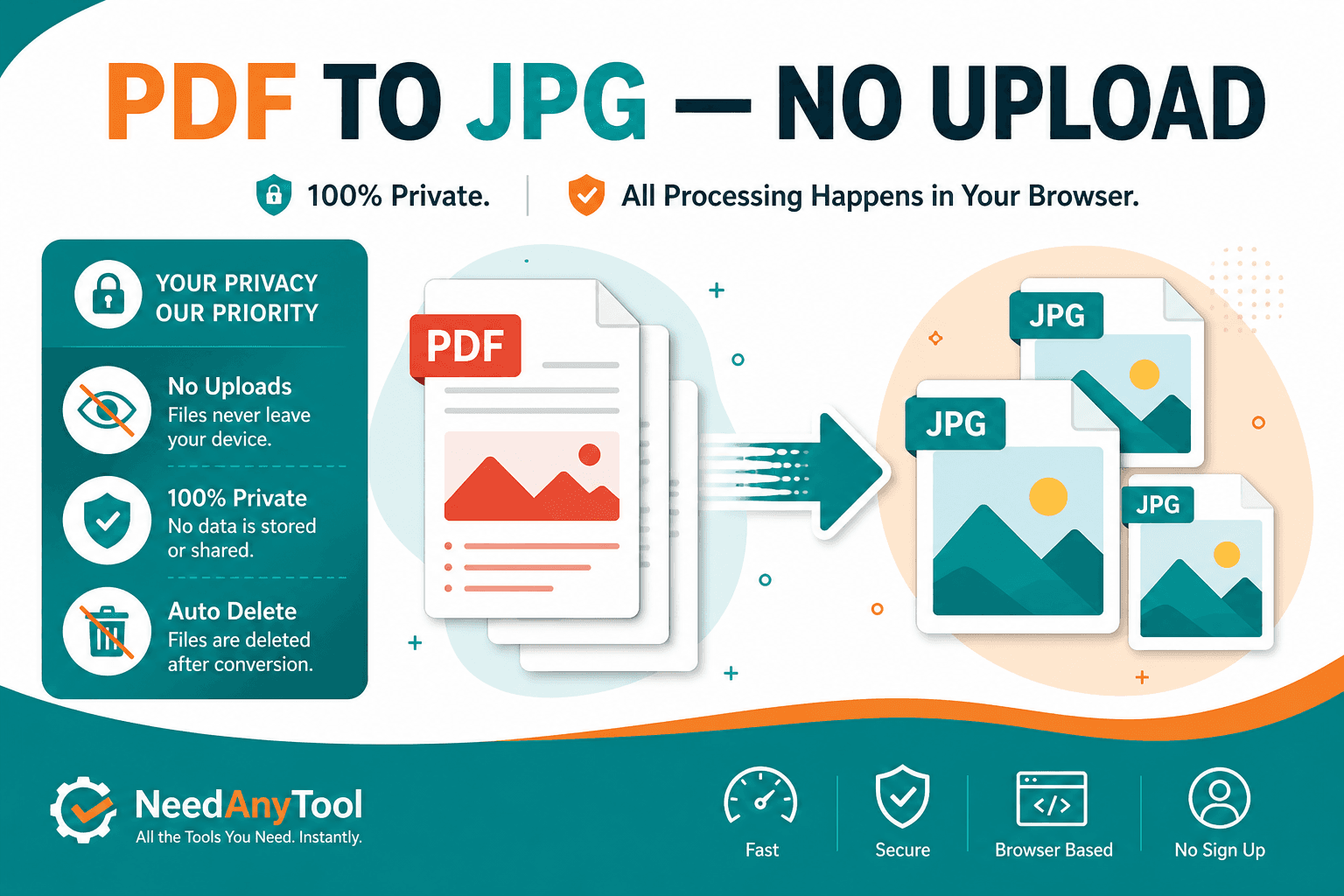
Convert PDF pages to JPG or PNG images in your browser. Export slides, scans, or forms as pictures — free, no account.