PDF Guides
How to Add a Watermark to a PDF Online
Add a watermark to a PDF online — stamp Draft, Confidential, or a logo across pages. Free PDF watermark tool in your browser, no upload.
NeedAnyToolPublished Updated 1 min read
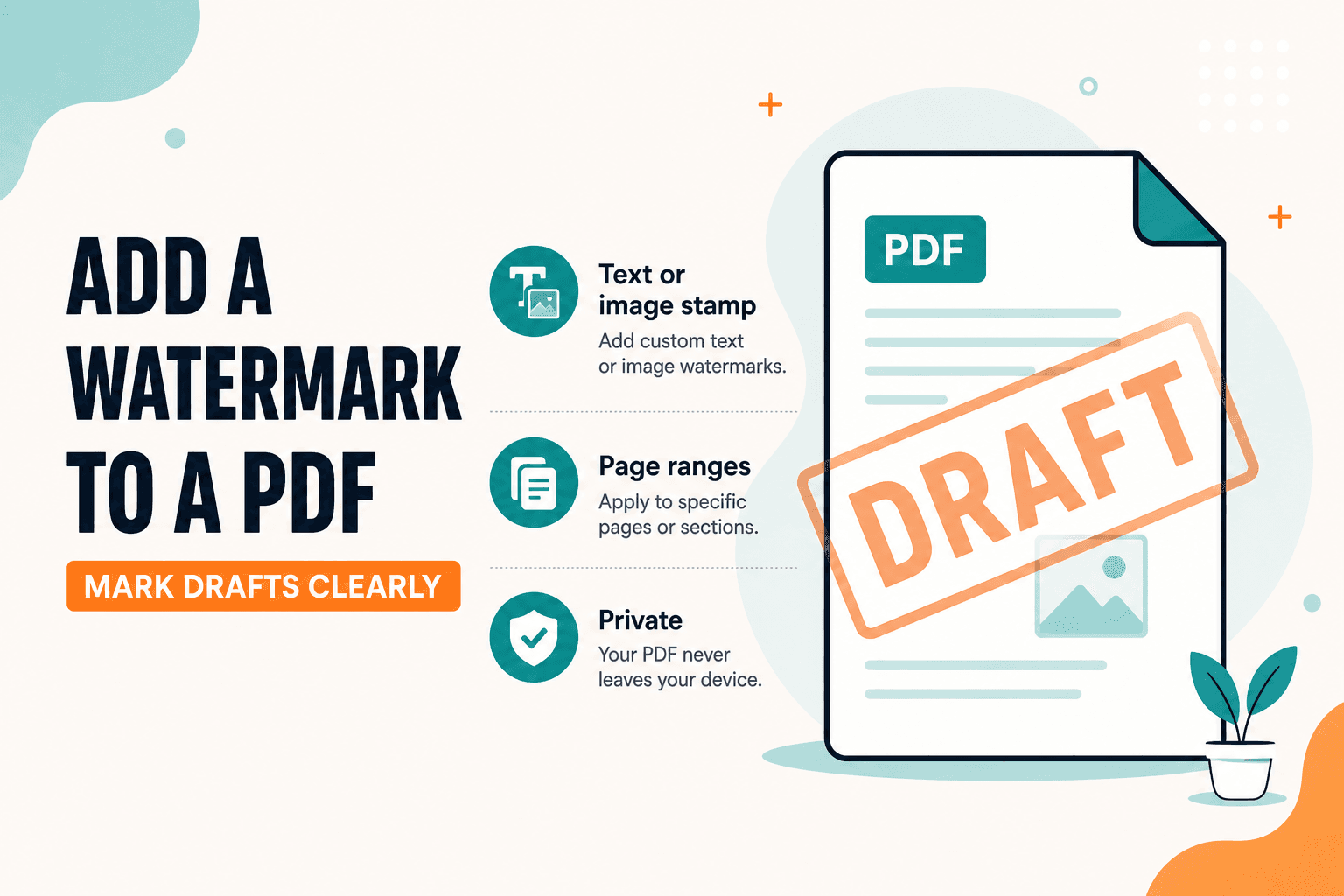
Drafts leak. Watermark PDF stamps text or an image across a page range so reviewers can tell a Sample, Confidential, or Do Not Copy file from a final.
Watermarking is for repeating stamps. For a one-off note in a specific spot, use Add text instead.
Where watermarks actually get used
Label a contract draft before client review. Brand a sample brochure with a logo mark. Mark exam practice packs so they're not confused with finals. Add a version or date band across a long report.
The stamp should be visible enough to deter casual forwarding but not so heavy it hides the content underneath.
Adding a watermark
- Open Watermark PDF.
- Select the PDF from your device.
- Choose text or image watermark options and the page range.
- Apply and download.
- Check a middle page — not only page one — so opacity and placement look right.
If pages are out of order, fix them with Organize before watermarking so the stamp lands on the pages you intend.
| Goal | Tool |
|---|---|
| Repeating stamp across pages | Watermark |
| Pagination | Page numbers |
| One custom text placement | Add text |
Because Watermark PDF stamps locally in your browser, you can mark a confidential draft without uploading it to a third-party site first.
FAQ
Can I use a logo as a watermark?
Yes, when the tool options allow an image stamp. Keep opacity readable but not overpowering.
Can I watermark only some pages?
Yes. Set a page range so only those pages receive the stamp.
Do I need an account?
No.
30 on-device PDF tools — nothing uploaded.
Related guides
PDF Guides
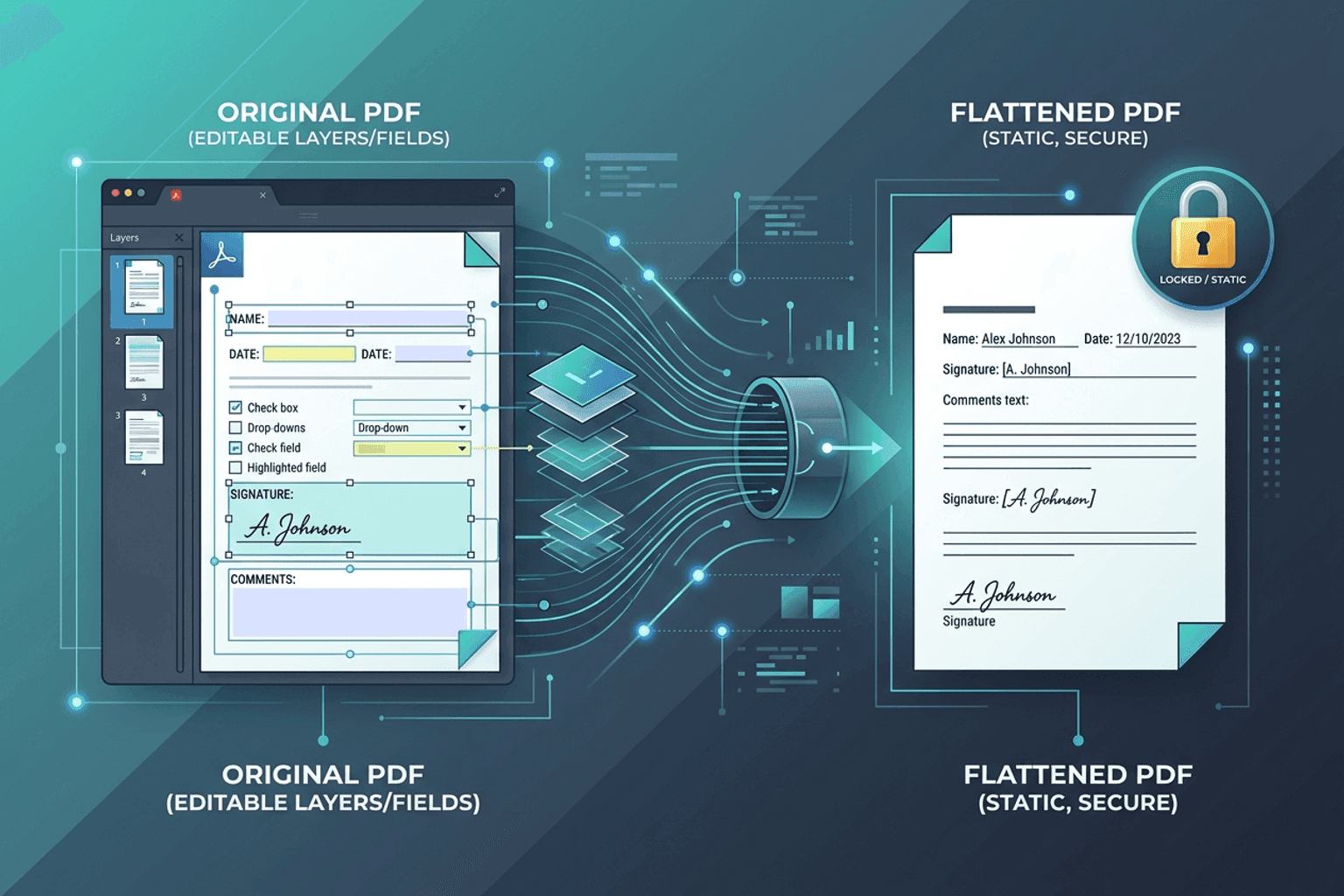
Flatten PDF Form Fields Online — Lock Edits
Flatten PDF form fields, annotations, and visual signatures into permanent page content in your browser. Lock documents and prevent layout shifts with zero uploads.
PDF Guides
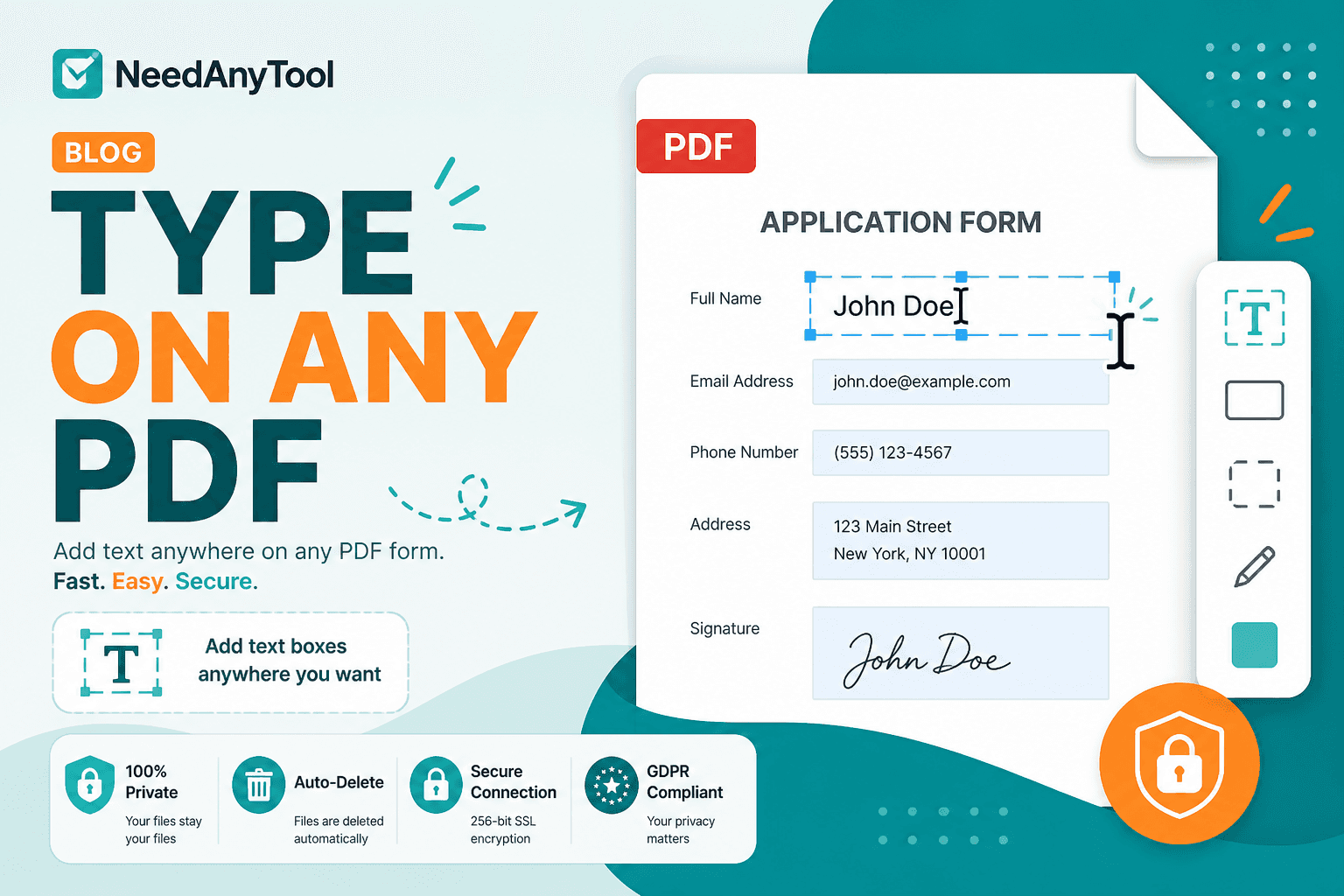
Add Text to a PDF Online
Add text to a PDF in your browser — names, dates, addresses, and notes placed exactly where you need them. No upload required.
PDF Guides
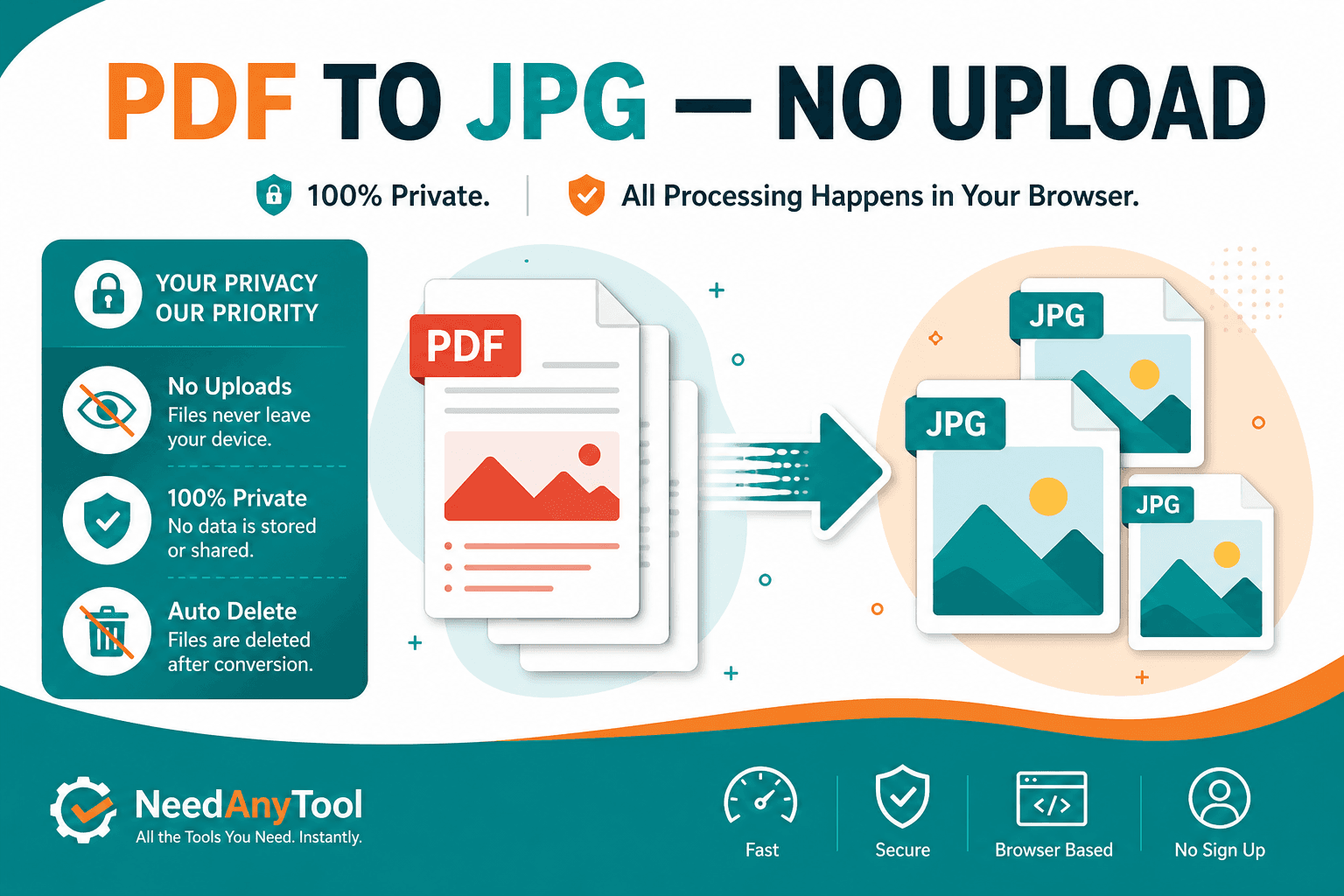
Convert PDF Pages to JPG Online
Convert PDF pages to JPG or PNG images in your browser. Export slides, scans, or forms as pictures — free, no account.