Image Guides
Crop Photos to Instagram Story Size (9:16)
Crop photos to Instagram Story size (1080×1920, 9:16) online — no app required. Free browser crop with safe-zone tips.
NeedAnyToolPublished Updated 2 min read
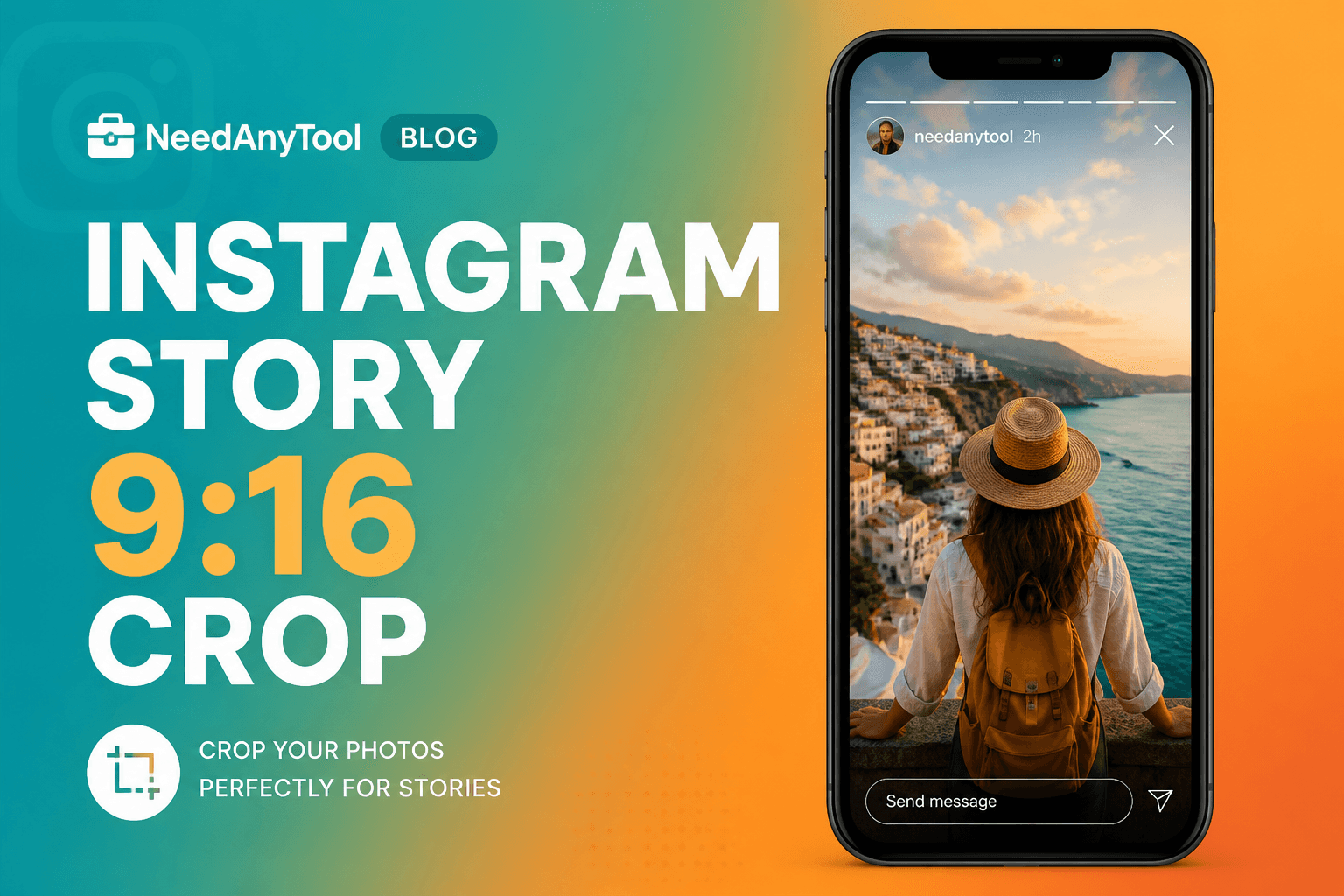
Stories take over the full screen. Drop a landscape photo in there and you get awkward letterbox bars — or worse, Instagram crops it for you and cuts off someone's forehead. A quick phone snap from a concert stage loses half the crowd that way. Better to crop intentional 9:16 from the start.
Social Media Sizes has Instagram Story presets baked in. Need freeform cropping first? Crop Image handles that.
The numbers that matter
Instagram Stories and Reels covers both want 1080 × 1920 at a 9:16 ratio. Feed posts are square at 1080 × 1080 — different beast entirely. Aspect ratio matters more than hitting exact pixels; platforms scale, but starting at the right ratio means you're in control of what gets cut.
Where UI eats your composition
Instagram's interface isn't neutral. The bottom ~250px fights the reply bar. The top ~200px competes with username and timestamp. Stickers, polls, and link buttons cover corners. Keep faces, logos, and critical text in the centre third.
Position your subject there, download, and preview on your phone before you post. That's the only preview that counts.
Story crop vs feed crop
Square feed crops throw away vertical context — fine for a product hero shot, wrong for behind-the-scenes or vertical-first teasers. Story crop is for content meant to be watched thumb-up on a phone.
If the platform complains about file size after export, run Compress. For subtle branding on the final image, Watermark works after cropping.
Everything runs in your browser — useful when you're prepping campaign art that isn't public yet.
FAQ
Do I need exactly 1080×1920?
Close enough. Platforms scale; getting the 9:16 ratio right is what matters.
Does this apply to video too?
Same aspect ratio for video Stories. This guide covers still images specifically.
My crop looks blurry — what happened?
You probably started from a low-res source. Don't upscale small files; shoot or export bigger.
Should I add text before or after cropping?
After — so you know exactly where text sits relative to UI overlays. Watermark works too for lighter branding.
Related guides
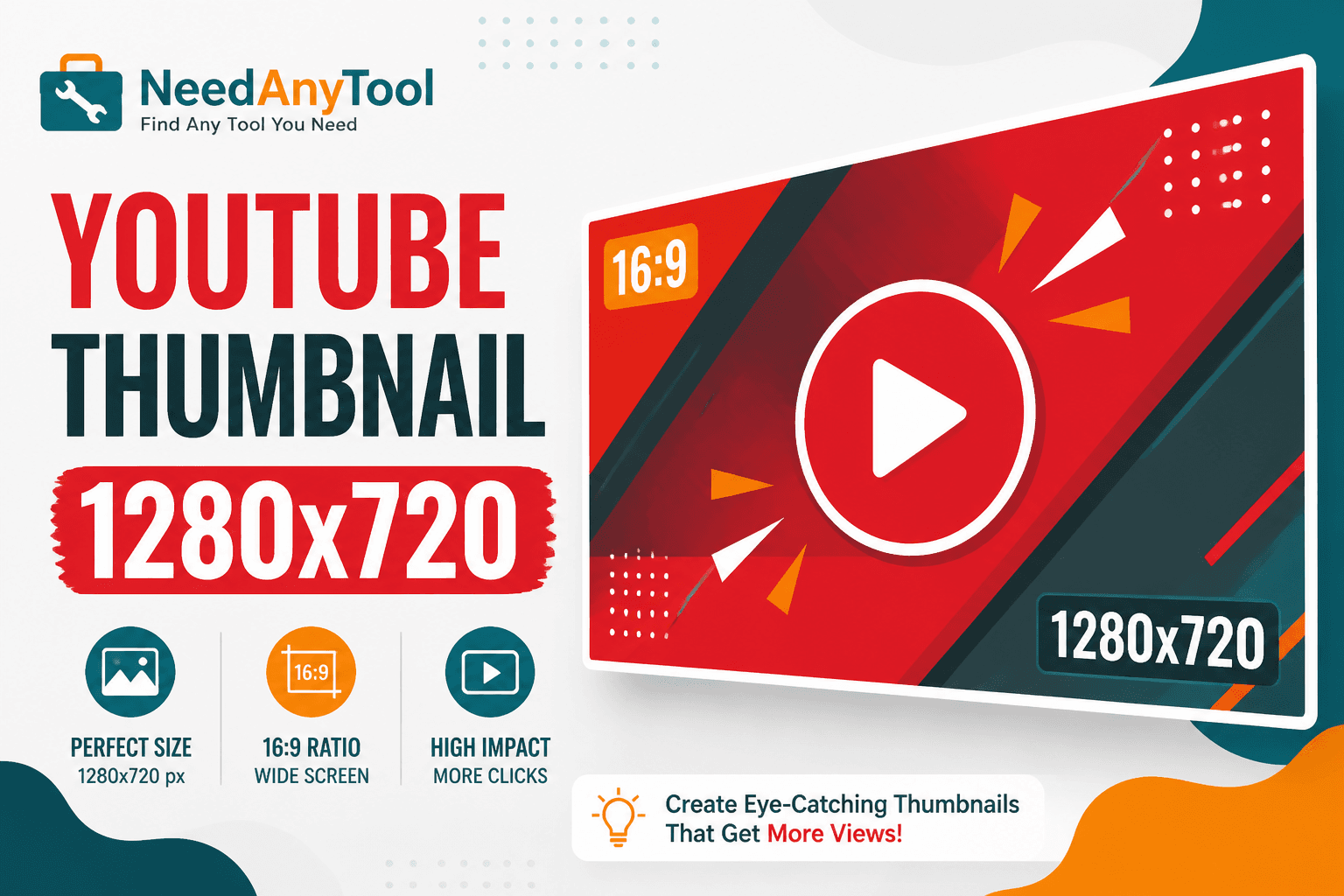
Image Guides
Resize Images for YouTube Thumbnails (1280×720)
Size images for YouTube thumbnails — 1280×720, 16:9 — online in your browser. Crop and export click-worthy covers without Photoshop.
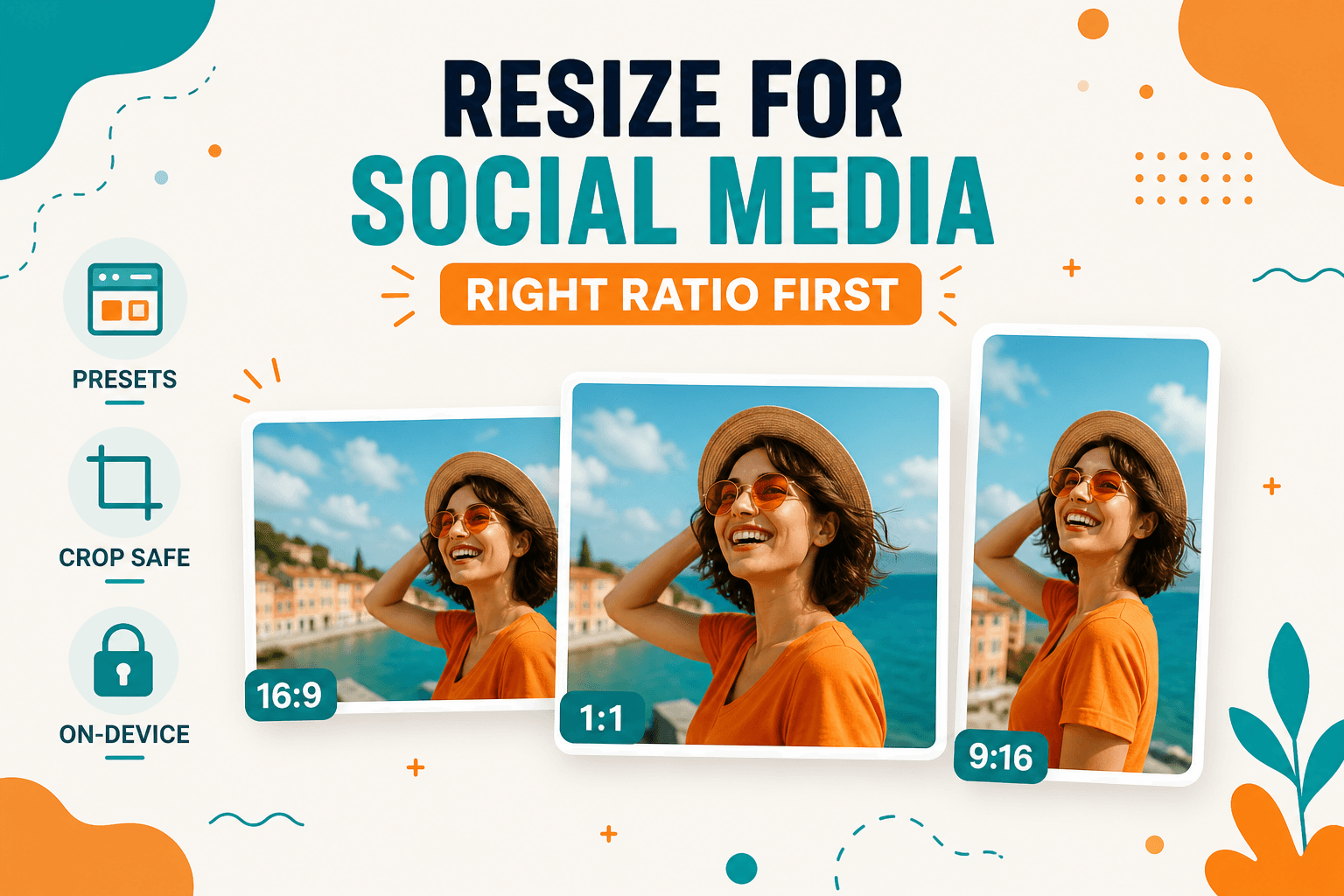
Image Guides
How to Resize Images for Instagram, LinkedIn, and Social Posts
How to resize images for Instagram, LinkedIn, YouTube, X, and Facebook using browser presets — crop and resize on-device, no upload.
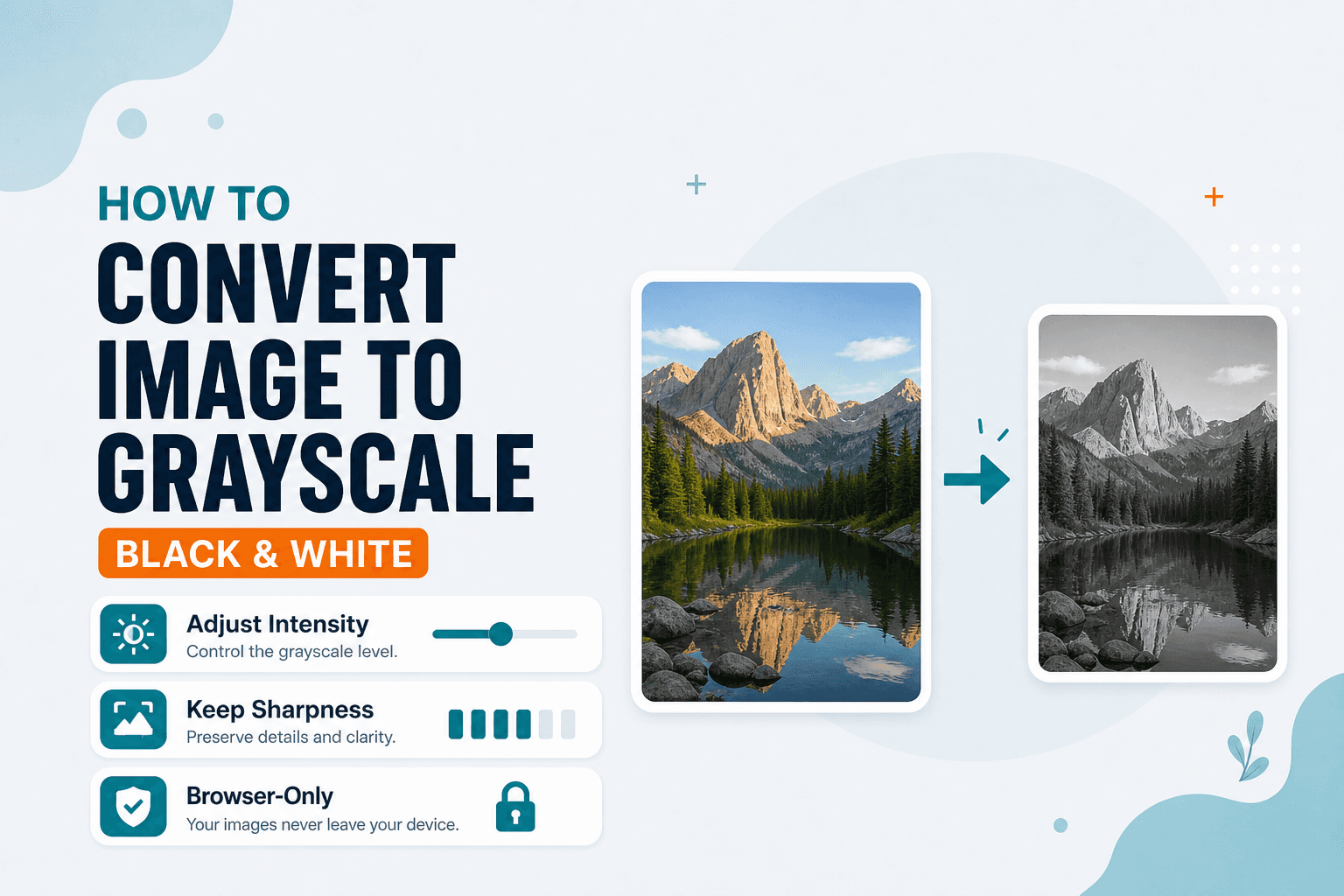
Image Guides
How to Convert an Image to Grayscale (Black & White)
How to convert an image to grayscale online — turn a color photo black and white in your browser. Desaturate JPG/PNG with no upload.