PDF Guides
Compress PDF for Email — Shrink Attachments
Compress a PDF for Gmail or Outlook limits in your browser. Free, private size reduction — no upload. Aim under common email attachment caps.
NeedAnyToolPublished Updated 4 min read
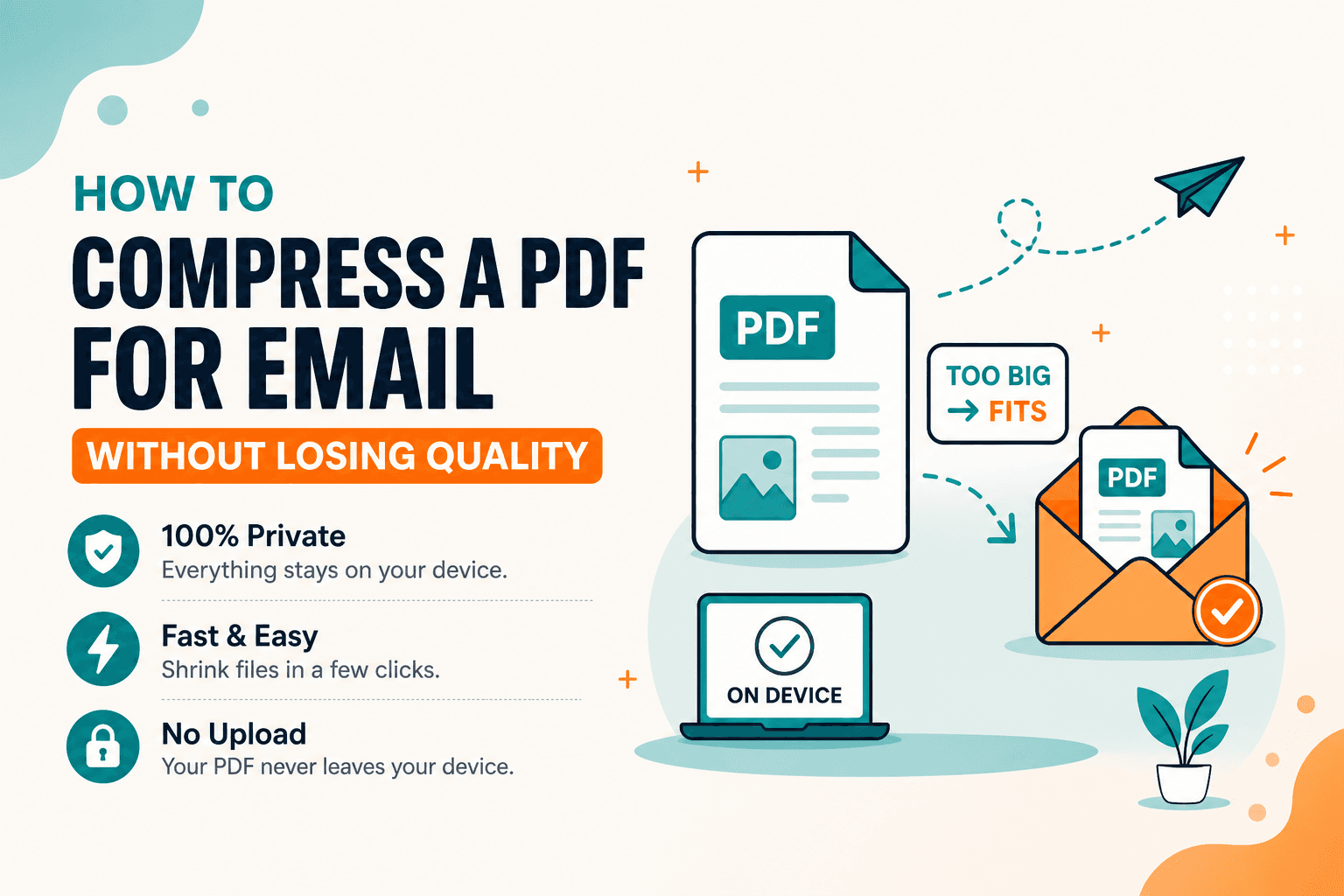
When a PDF won't send, the problem is almost always size — not the file type. Email systems cap attachments. Compress PDF shrinks the file in your browser for free — no upload — so you can stay under Gmail and Outlook limits. Drop unused pages with Delete pages first if blank scans are the real weight.
Why some PDFs balloon and others don't
PDF is a container. What fills it up:
- Photos and scans — usually the culprit
- High-resolution page images from a phone camera
- Pages you don't need — blank backs, duplicate scans, extra cover sheets
- Embedded fonts and vector art, which shrink much less than photos
A text-heavy office PDF is often already small. Running a compressor on it barely moves the needle. A 40-page colour scan is a different story: almost all the bytes are images.
Know the limit before you chase a number
Consumer inboxes often allow roughly 20–25 MB per message, sometimes less once encoding overhead is counted. Corporate gateways and government portals are stricter — 5 MB, 2 MB, or even 1 MB. Some systems reject the message silently or bounce it after you hit send.
If the recipient's cap is 10 MB and your PDF is 11 MB, a modest compress is enough. If the limit is 1 MB and you have a long photo scan, you'll need to drop pages, split the packet, or accept softer images. See How to compress a PDF to under 1 MB when the cap is that tight.
Sending a link to cloud storage is a separate decision. This guide is for when you still need an actual attachment.
What compression actually does
NeedAnyTool's compressor focuses on recompressing images inside the PDF. It doesn't rewrite every text stream into a magically smaller encoding. That's why image-heavy files can drop a lot, text-only files barely change, and quality settings mainly affect photos — not body text.
Start with a middle setting. Move to a stronger one only if the file is still over the limit and you can live with softer photos. Compare the download at 100% zoom on a page that matters: a signature, a passport scan, a chart.
A practical workflow
- Note the attachment limit you actually have to hit.
- Remove unused pages with Delete pages, or keep only a range with Extract.
- Open Compress PDF, choose the file, and run a medium pass.
- Check the downloaded size in your file explorer.
- Still too large? Run a stronger pass and compare readability.
- Still stuck? Split the packet into two emails, or re-scan at a lower resolution.
Don't loop compression ten times on the same download — each pass can add artifacts for little extra saving.
| Situation | Try first |
|---|---|
| Slightly over a 10–25 MB consumer limit | Medium compress |
| Over a 5 MB work mailbox | Delete unused pages, then stronger compress |
| Must hit ~1–2 MB | Extract only needed pages, strong compress, or split |
| Still huge after compress | Mostly full-page photos — split, organize page order, or re-scan |
If size barely moves, you're probably compressing text and vectors. That's expected, not a tool failure.
Keeping quality acceptable
Readable text on a scan matters more than a perfectly smooth photo background. Signatures and stamps should stay sharp enough to recognise — if they smear, you went too far, or the scan was already poor. Colour photos in a brochure will show compression first, which may be fine for email even when it wouldn't be for print.
Forms you still need to fill should be checked after compress. Some aggressive pipelines flatten or alter interactive fields, so open the download and click fields once before you send.
Because Compress PDF runs locally in your browser, you can shrink invoices, ID scans, and medical paperwork without uploading them to an anonymous "compress for free" site. That's the better choice when the document is sensitive.
FAQ
Will compression always make a PDF small enough for Gmail?
No. Gmail's limit is relatively high, but a scan can still miss a stricter work or government cap even after compression.
Should I compress or delete pages first?
Delete (or extract) first. There's no point recompressing pages you're not going to send.
Does this work on a phone?
Yes, in a mobile browser. Large files are often easier on a desktop because of memory and download management. PDF Toolkit: Reader & Tools is useful when the file is already on your phone.
Will the recipient notice compression?
On photo scans, maybe. On text-heavy office PDFs, usually not — there was little to recompress in the first place.
30 on-device PDF tools — nothing uploaded.
Related guides
PDF Guides
Compress a PDF to 1 MB — Limits Guide
When a PDF can realistically approach 1 MB for an upload cap, what usually blocks it, and the workflow. For the tool, start at Compress PDF to 1 MB. Exact size depends on the file.
PDF Guides
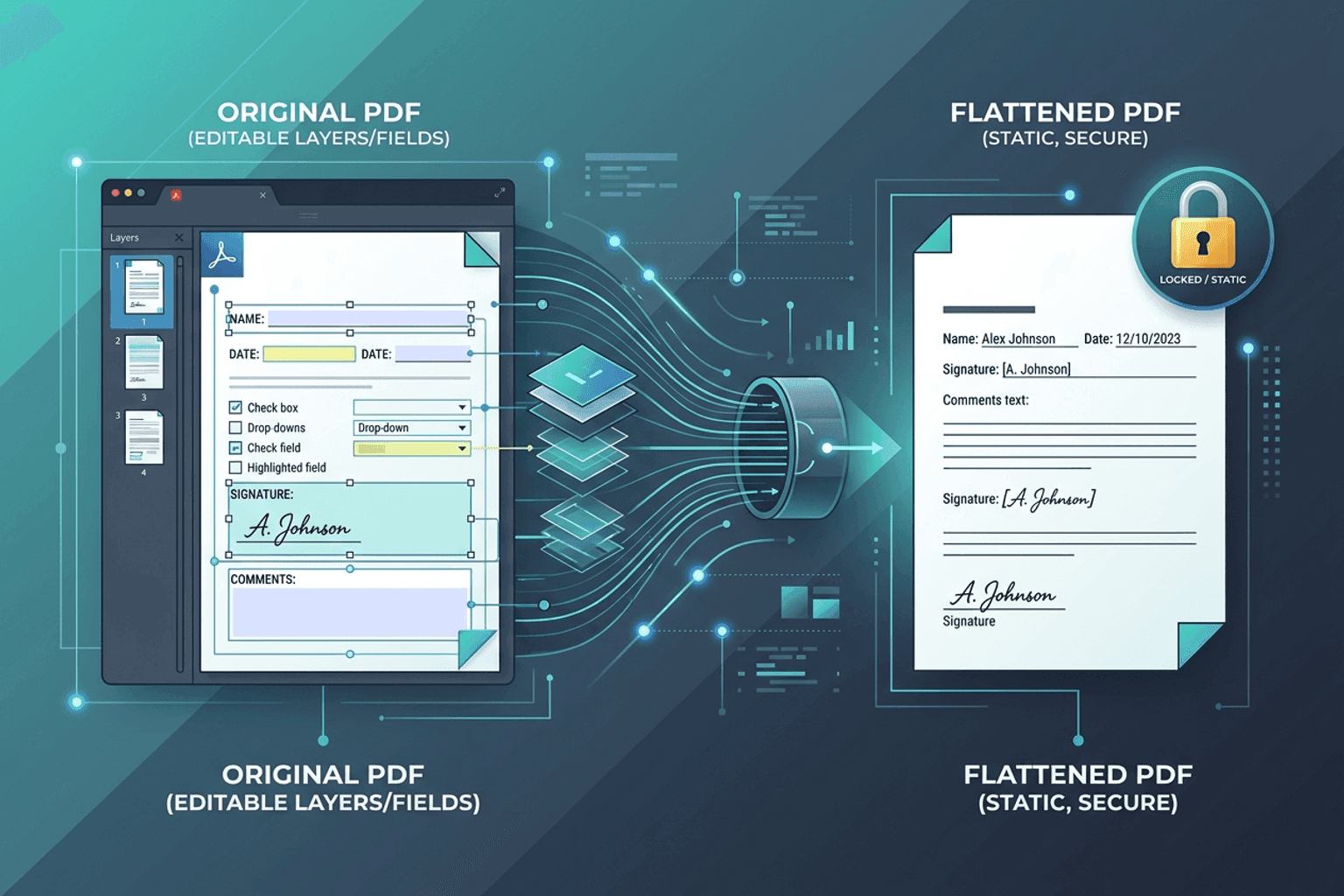
Flatten PDF Form Fields Online — Lock Edits
Flatten PDF form fields, annotations, and visual signatures into permanent page content in your browser. Lock documents and prevent layout shifts with zero uploads.
PDF Guides
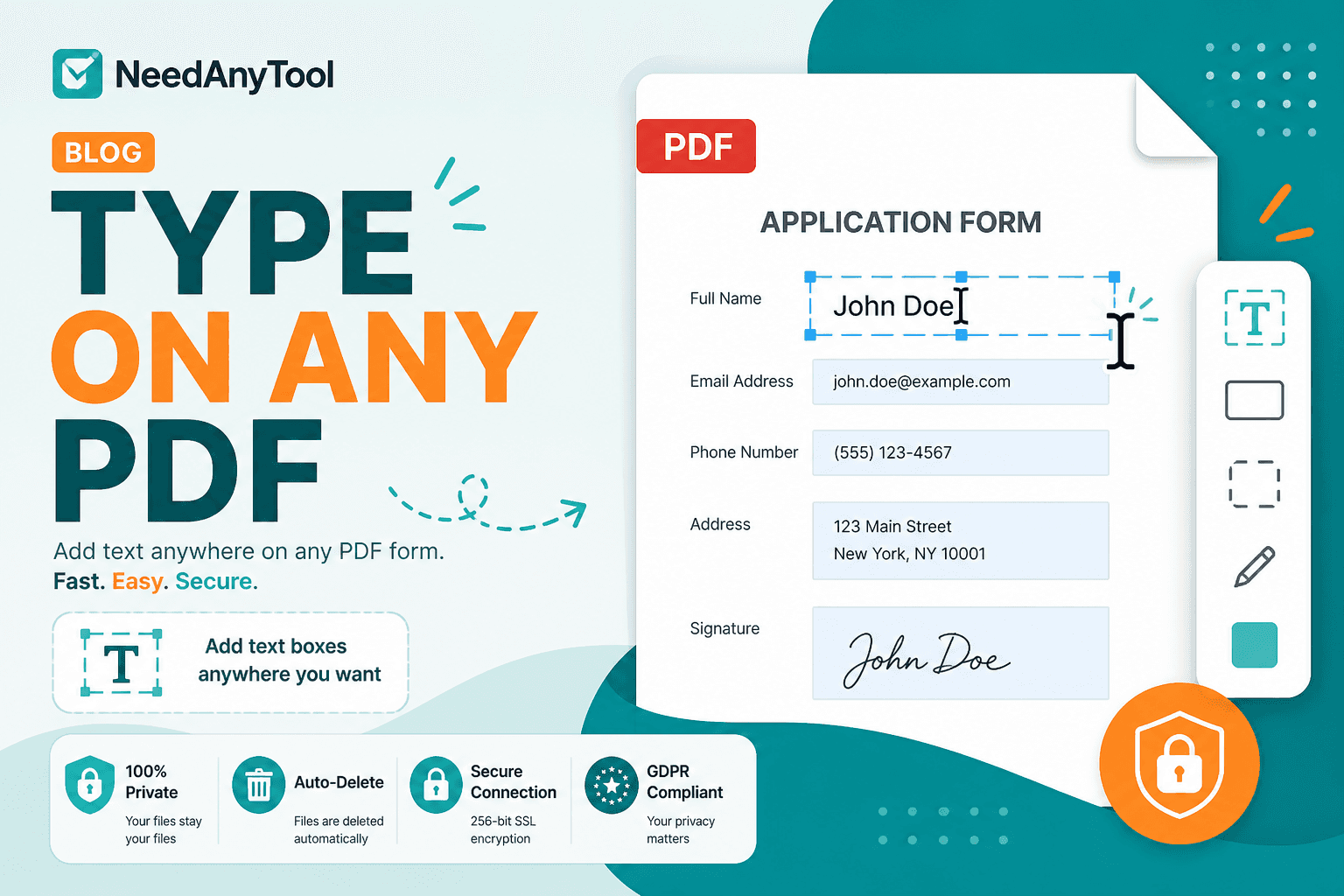
Add Text to a PDF Online
Add text to a PDF in your browser — names, dates, addresses, and notes placed exactly where you need them. No upload required.