PDF Guides
Redact a PDF Online — Black Out Sensitive Text
Redact PDF content permanently — black out account numbers, names, and confidential lines. True redaction in your browser, not just a black rectangle overlay.
NeedAnyToolPublished Updated 2 min read
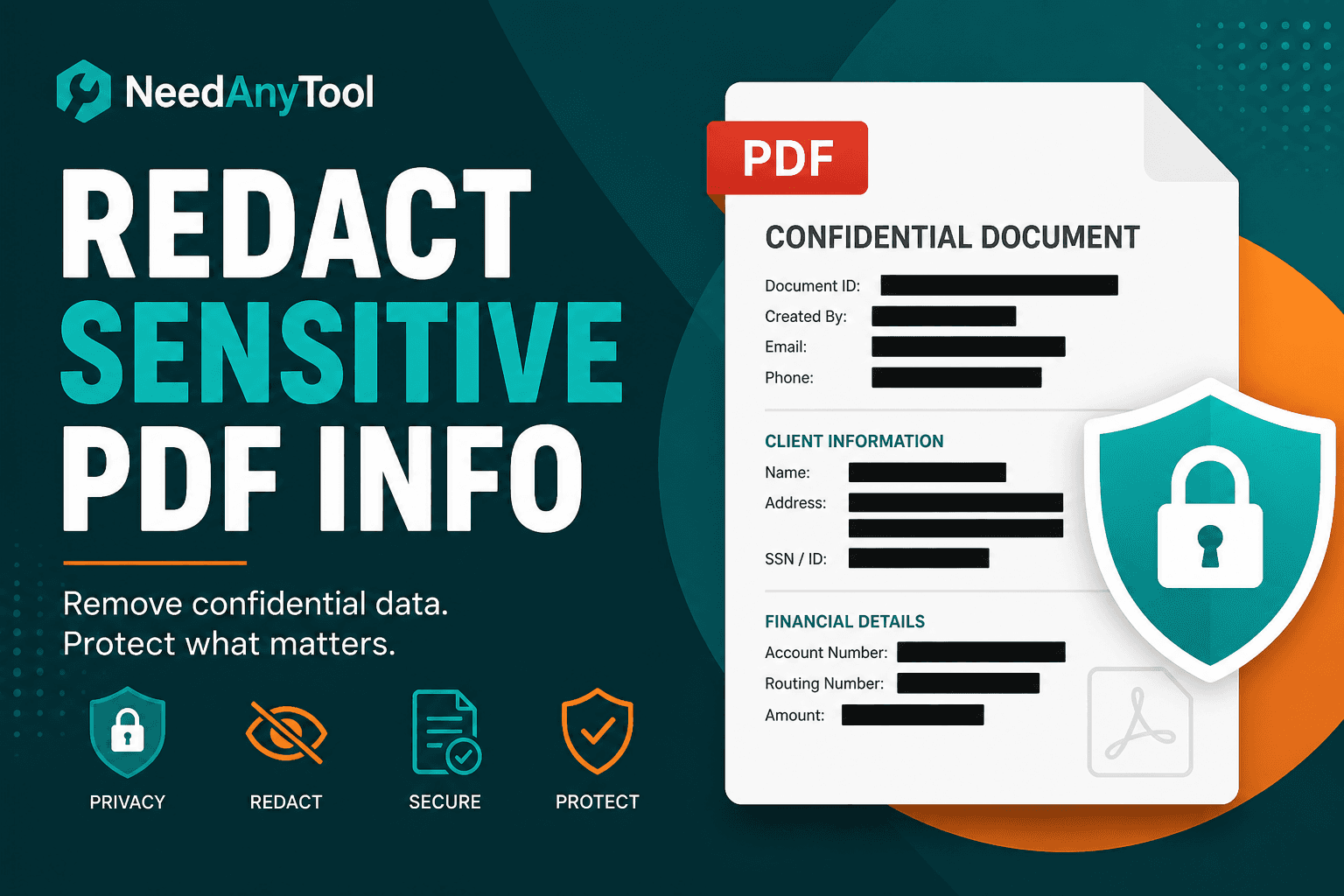
A black shape drawn on top of text isn't redaction — sometimes the text still copies underneath. Real redaction removes the content so it can't be recovered.
Redact PDF permanently blacks out regions you mark. Use it before sharing statements, medical packets, or discovery documents. For emphasis without hiding, Highlight marker is the right tool.
What people redact
Bank and card numbers on statements. Third-party names in a legal exhibit. Employee IDs on internal reports. Addresses on invoices when only line items should show.
The mistake most people make is redacting too loosely — a box that covers half a page when only one line needed hiding. Tight boxes look cleaner and reduce the risk of accidentally masking something a recipient still needs to see.
Doing it properly
Open Redact PDF, load the PDF, and draw redaction boxes tightly around sensitive lines — not whole pages unless you have to. Apply redactions and download.
Then try to select text under the black bar in a reader. If text still copies, the redaction didn't commit. That's the test.
Redaction runs on your device — critical for HIPAA-style workflows and legal holds. Keep an unredacted master offline if you'll need it later.
Before you send
Remove metadata if author fields leak context. Compress after redaction if email size matters. Redact first on the clearest source; compress last.
Permanent removal → Redact. Call attention → Highlight. Mark status DRAFT → Watermark.
FAQ
Is drawing a black box enough?
Only if the tool burns content out of the file. Test with copy-paste after download.
Can I undo a redaction?
Treat it as final. Keep an original separately.
Does redaction work on scanned pages?
Yes — it removes image pixels in the marked region.
Should I redact before or after compressing?
Redact first on the clearest source. Compress last for email.
30 on-device PDF tools — nothing uploaded.
Related guides
PDF Guides
Sign a PDF Online Without Printing or Uploading
Sign a PDF online free — draw an electronic signature without printing or uploading. E-sign PDF forms in your browser with NeedAnyTool.
PDF Guides
How to Merge PDF Files Without Uploading
How to merge and combine PDF files in your browser with no upload. Private on-device merge — reorder files, download one document.
PDF Guides
How to Add a Watermark to a PDF Online
Add a watermark to a PDF online — stamp Draft, Confidential, or a logo across pages. Free PDF watermark tool in your browser, no upload.