PDF Guides
Extract PDF Pages Online — Save a Page Range
Extract specific pages from a PDF and save them as a new file — in your browser, no upload. Pull one page or a range in seconds.
NeedAnyToolPublished Updated 2 min read
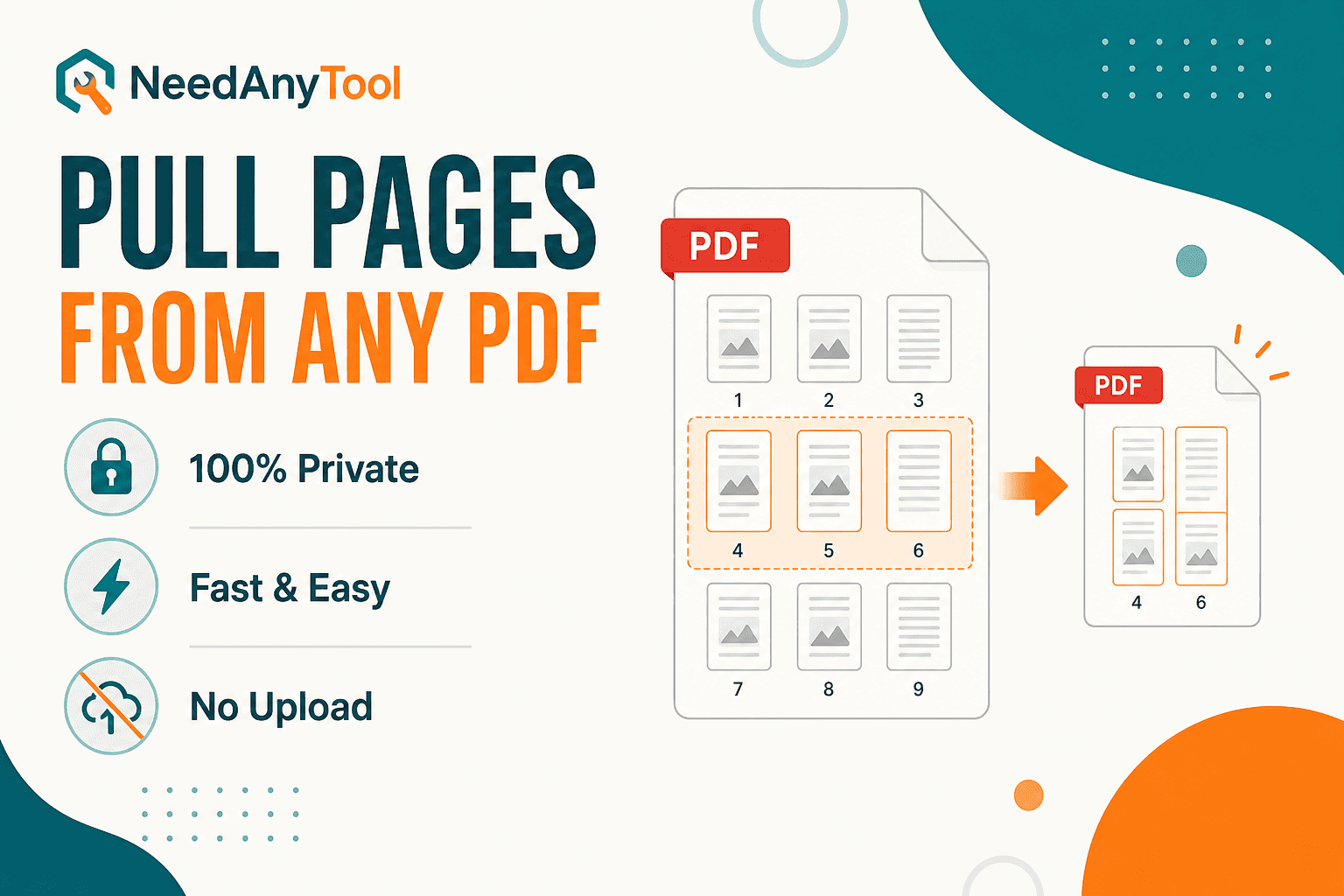
A 50-page contract lands in your inbox. You only need pages 12–14 for a signature packet. Printing the whole thing or screenshotting each page wastes time — and it looks sloppy.
Extract pages pulls just the pages you pick and saves them as a new PDF. The file stays on your device while you work, which is handy when you're dealing with HR packets or financial statements.
If you'd rather drop pages than keep them, try Delete pages. Need to shuffle what remains? See Organize PDF pages online.
Who actually needs this?
Contractors pulling one chapter from a long report. Accountants grabbing invoice copies from a monthly statement. Anyone building a smaller packet before running Compress PDF. The pattern is the same: most of the file is noise.
How to pull specific pages
Open Extract pages, load your PDF, and enter page numbers or ranges — something like 3, 7-9, 15. If the tool shows thumbnails, skim them before you download. Ranges are inclusive: 7-9 means pages 7, 8, and 9.
Check the page count on the download before you email it. One wrong digit in a range is the most common mistake.
Extract, delete, or split?
Keeping only certain pages? That's Extract. Removing junk and saving the rest? Delete pages. Cutting a file into equal chunks? Split PDF. Reordering before you save? Organize.
A couple of things people miss
Extract before you add page numbers if the smaller file should start at page 1. Scanned PDFs work the same as digital ones — you're copying page objects, not re-OCR-ing text. If the extracted file is still too chunky for email, Compress PDF on the smaller packet.
FAQ
Can I grab pages that aren't next to each other?
Yep. List them with commas: 1, 4, 8-10.
Will links and bookmarks still work?
Embedded links on kept pages usually survive. Bookmarks pointing to pages you removed might break — open the download and click through once to be sure.
Is this the same as splitting a PDF?
Not quite. Split divides by count or fixed ranges. Extract is for hand-picked pages.
What if the PDF is password-locked?
Unlock it first with Unlock PDF if you know the password.
30 on-device PDF tools — nothing uploaded.
Related guides
PDF Guides
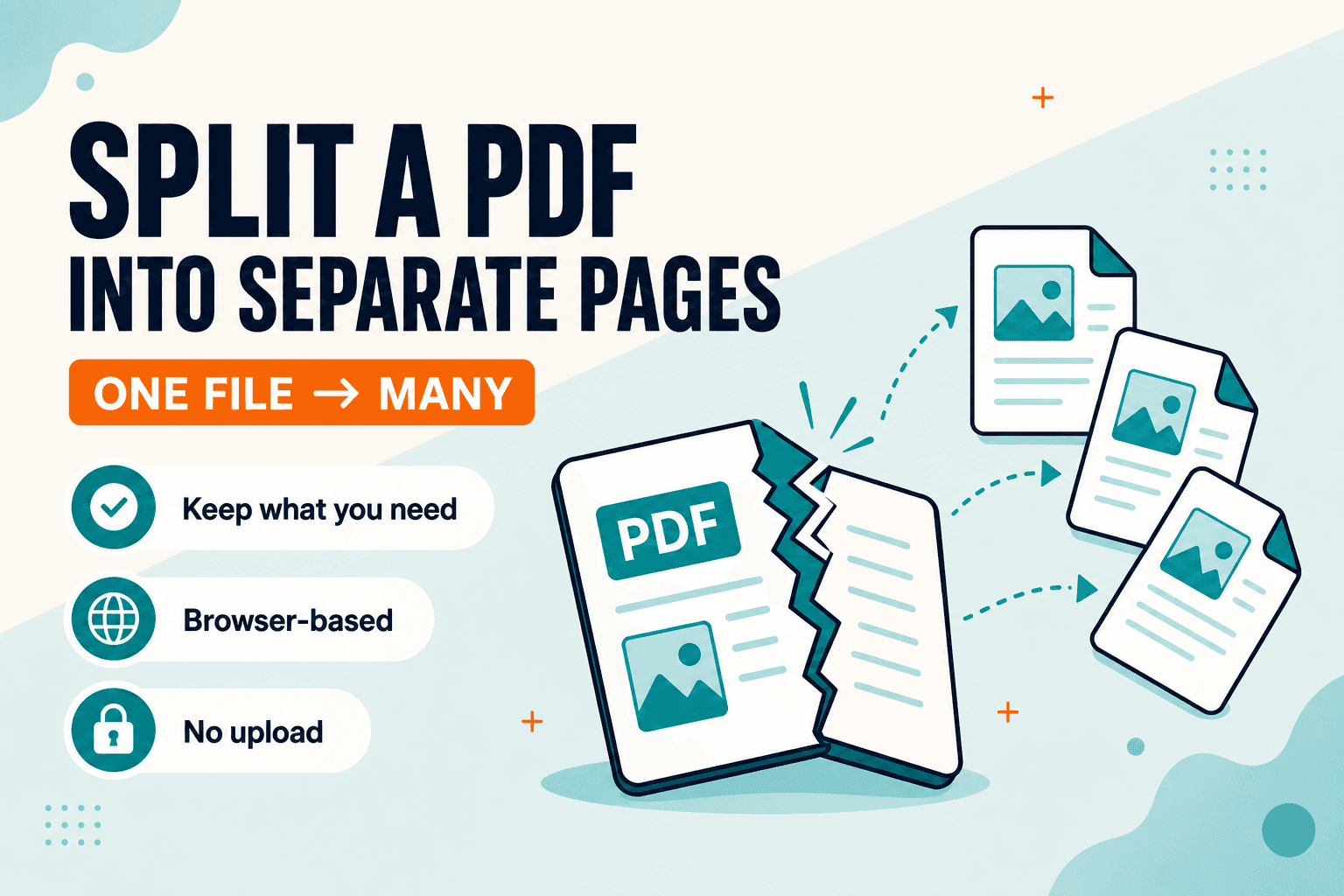
How to Split a PDF into Separate Pages
How to split a PDF into separate pages or ranges in your browser. Private splitter — no upload. Extract only what you need with NeedAnyTool.
PDF Guides
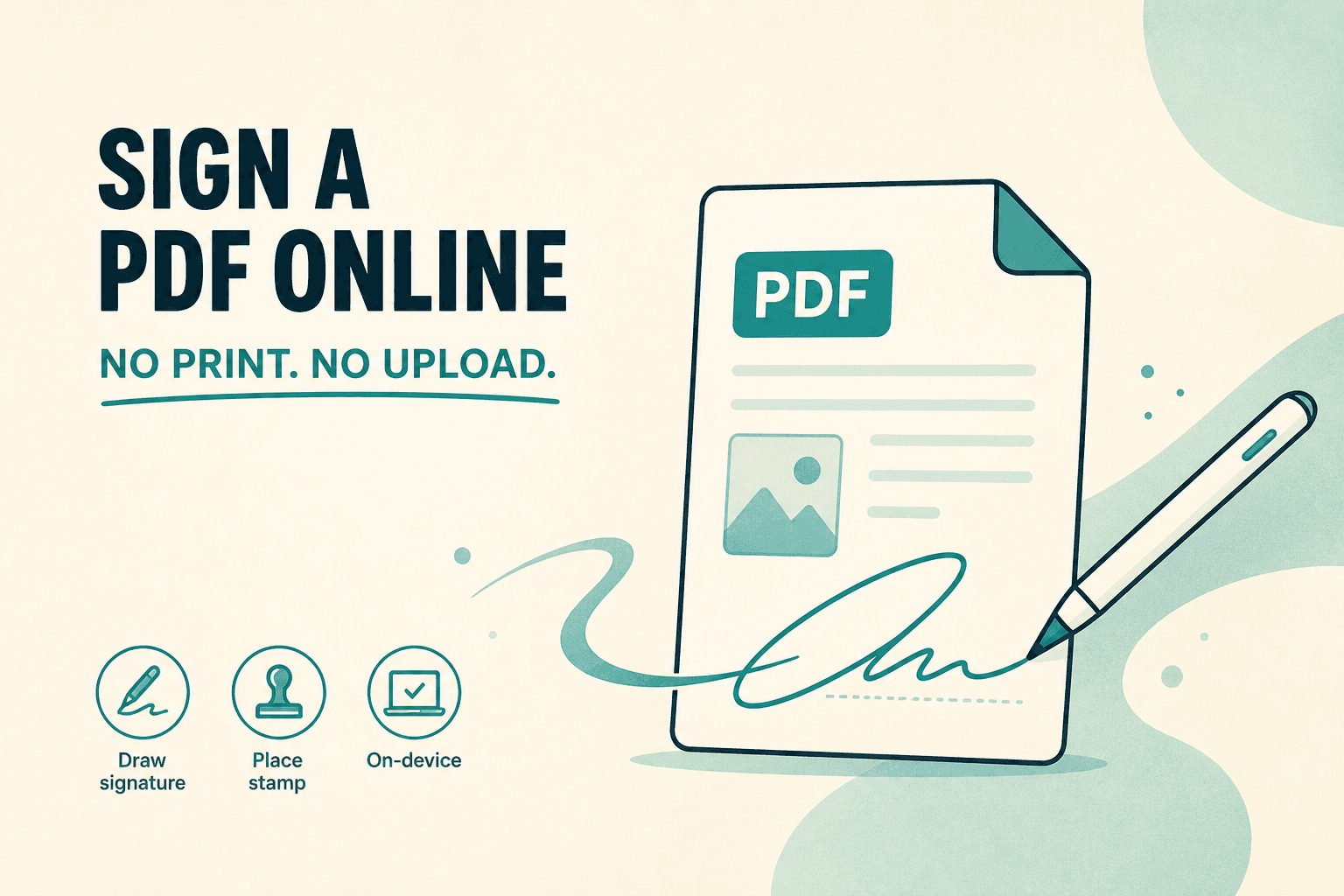
Sign a PDF Online Without Printing or Uploading
Sign a PDF online free — draw an electronic signature without printing or uploading. E-sign PDF forms in your browser with NeedAnyTool.
PDF Guides
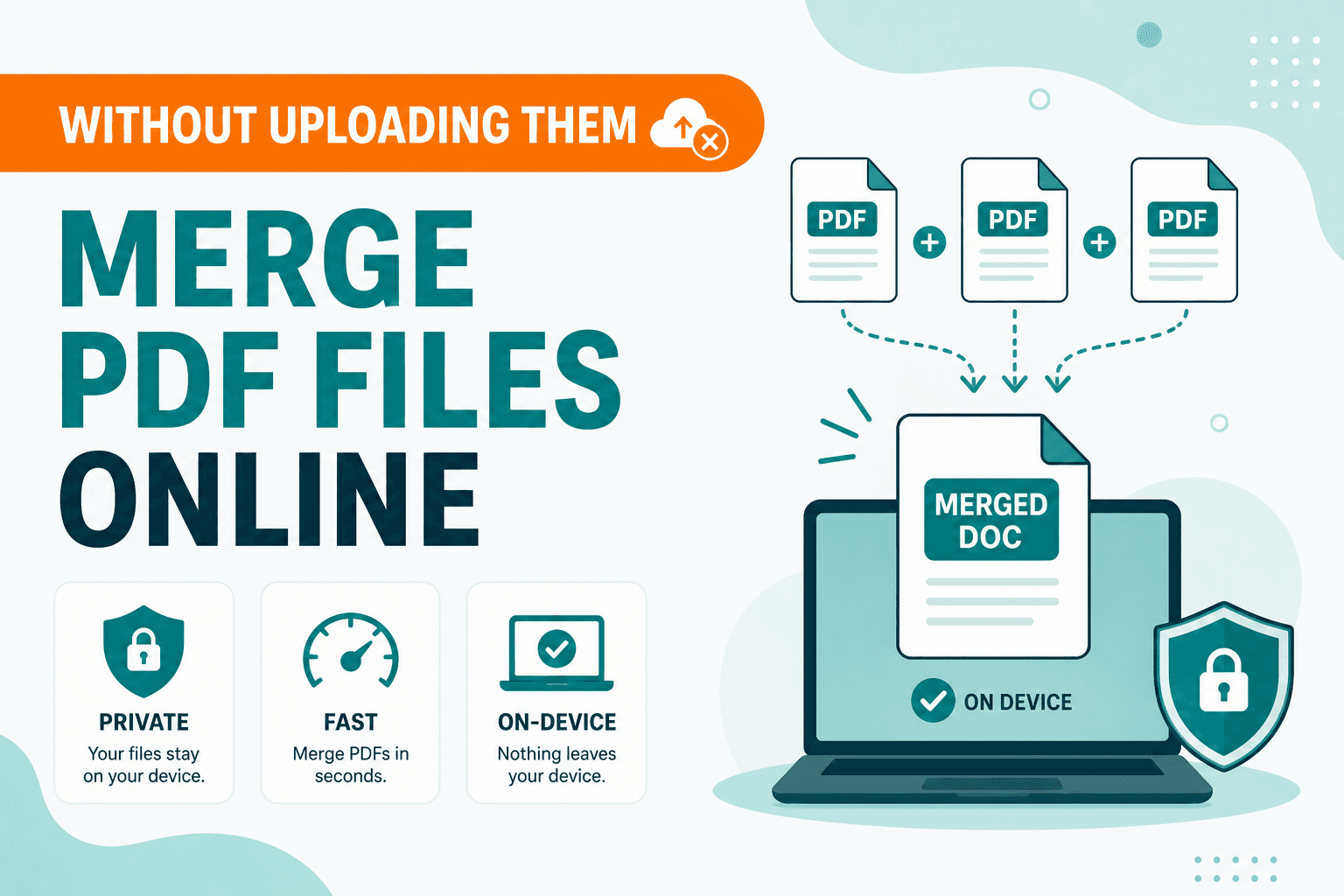
How to Merge PDF Files Without Uploading
How to merge and combine PDF files in your browser with no upload. Private on-device merge — reorder files, download one document.