PDF Guides
How to Split a PDF into Separate Pages
How to split a PDF into separate pages or ranges in your browser. Private splitter — no upload. Extract only what you need with NeedAnyTool.
NeedAnyToolPublished Updated 3 min read
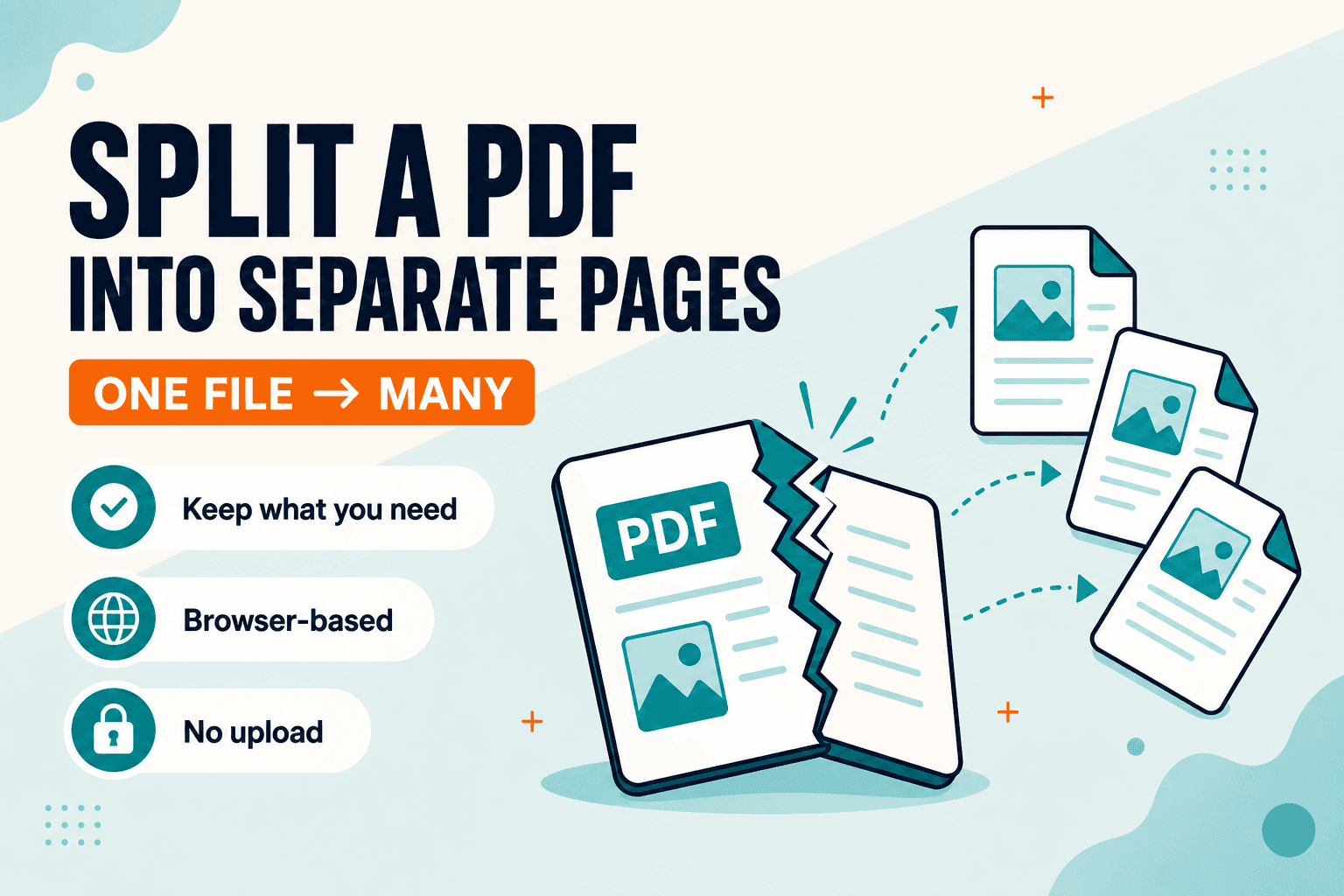
Need chapters, invoices, or scanned forms as separate files? Ready to split now? Open Split PDF — it divides one PDF into pages or ranges in your browser — free, private, no upload. If you only need one contiguous range as a single file, Extract pages is often simpler.
Splitting turns one file into several smaller ones. Use Split when you want separate outputs; use Extract when you want one trimmed PDF.
Why people split instead of just sending the whole thing
A report is one file, but colleagues only need their chapter. A scan mixed several unrelated documents into a single PDF. Email or a portal rejects the full attachment but accepts smaller pieces. You want each filled form, invoice, or certificate as its own file. A printer or copier workflow expects one document per file.
You don't need a desktop PDF editor for these jobs. You do need a clear selection of pages so you don't drop the wrong sheet.
Picking the right split rule
Before you split, decide the rule:
- Individual pages — page 1, page 2, page 3 each become a file
- Ranges — pages 1–4 as one file, 5–9 as another
- Every N pages — useful for stacks of two-page forms
Skim the thumbnails or page numbers in the tool so the first page of each output is the page you expect. Sideways scans can be rotated with Organize first if that makes the split easier to check. Password-protected PDFs need to be readable before you start.
Split, extract, or delete?
| Goal | Tool |
|---|---|
| Several separate PDFs | Split PDF |
| One PDF that keeps only some pages | Extract pages |
| Drop a few pages from the original | Delete pages |
"Send pages 12–18 as one attachment" → extract or split a single range. "One PDF per invoice in this batch" → split.
Wrong tool, common result: re-downloading three times. If you need one smaller file that simply omits junk pages, delete or extract. Pages in the wrong order but should stay one file? Organize. Many separate PDFs to join? Merge. File too large because of heavy images, not page count? Compress after (or instead of) splitting.
Running the split
- Open Split PDF and choose the PDF on your device.
- Choose pages or ranges. Confirm the preview matches what you intend to send.
- Run the split — processing stays in your browser.
- Download the new files and open at least the first page of each.
- If a piece is still too large for email, compress that piece with Compress PDF.
Keep the original until you've checked the outputs. Rename files immediately (invoice-1042.pdf, chapter-03.pdf) before they leave your Downloads folder.
Split PDF processes the file locally — no upload to NeedAnyTool. That's the better choice when the PDF contains contracts, IDs, or medical pages.
FAQ
Will split change the content of each page?
No. It copies the selected pages into new PDF files without rewriting text or images.
Split vs extract vs delete?
Split: many files. Extract: one file with a subset. Delete: one file with pages removed.
Can I split on a phone?
Yes. Very large files may be more comfortable on a desktop. On Android, PDF Toolkit: Reader & Tools covers similar everyday PDF jobs.
Does splitting reduce file size a lot?
Each output only contains its pages, so yes for unused chapters — but a single scanned page can still be large. Compress that piece if email still rejects it.
Ready to separate the pages? Use Split PDF.
30 on-device PDF tools — nothing uploaded.
Related guides
PDF Guides
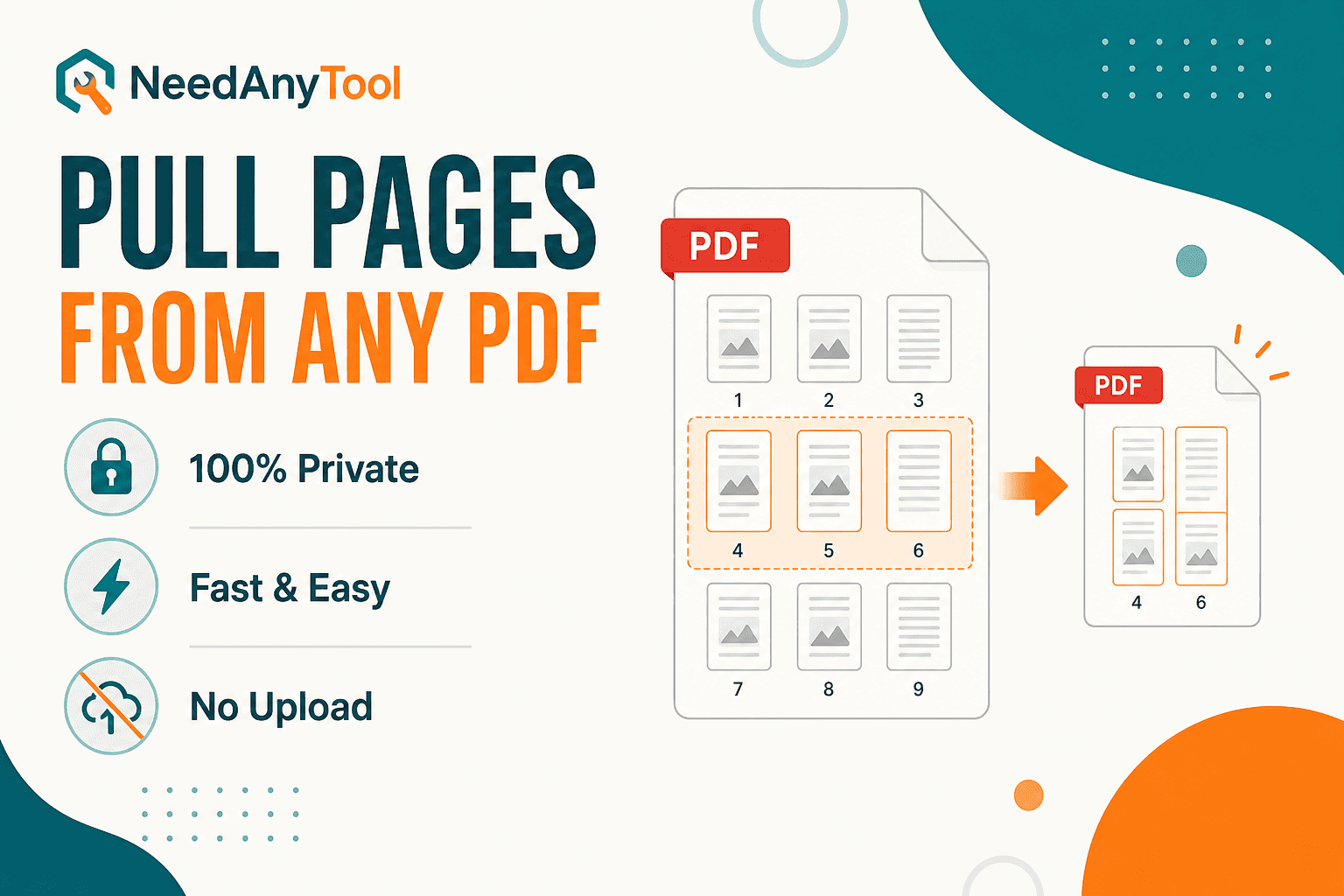
Extract PDF Pages Online — Save a Page Range
Extract specific pages from a PDF and save them as a new file — in your browser, no upload. Pull one page or a range in seconds.
PDF Guides
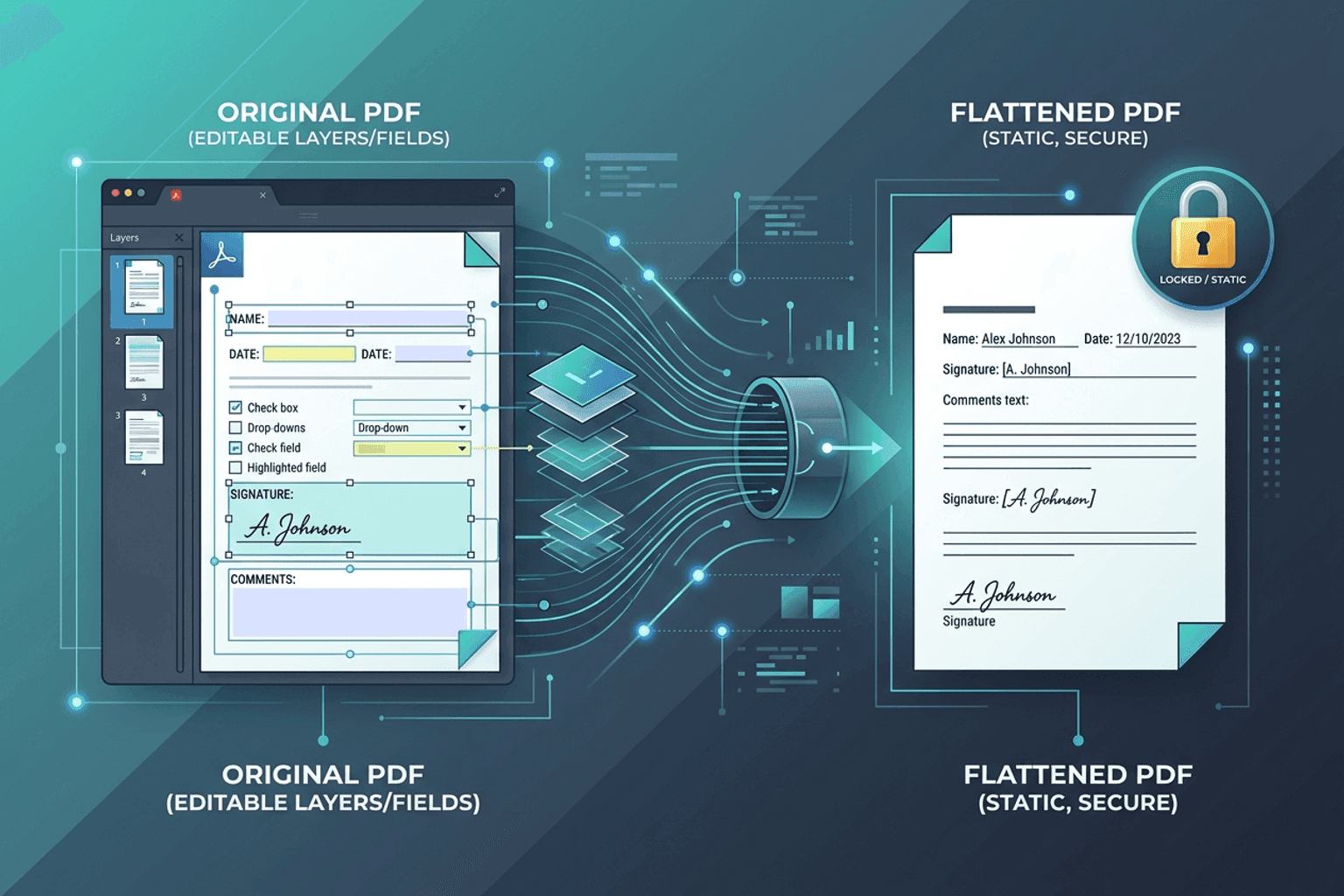
Flatten PDF Form Fields Online — Lock Edits
Flatten PDF form fields, annotations, and visual signatures into permanent page content in your browser. Lock documents and prevent layout shifts with zero uploads.
PDF Guides
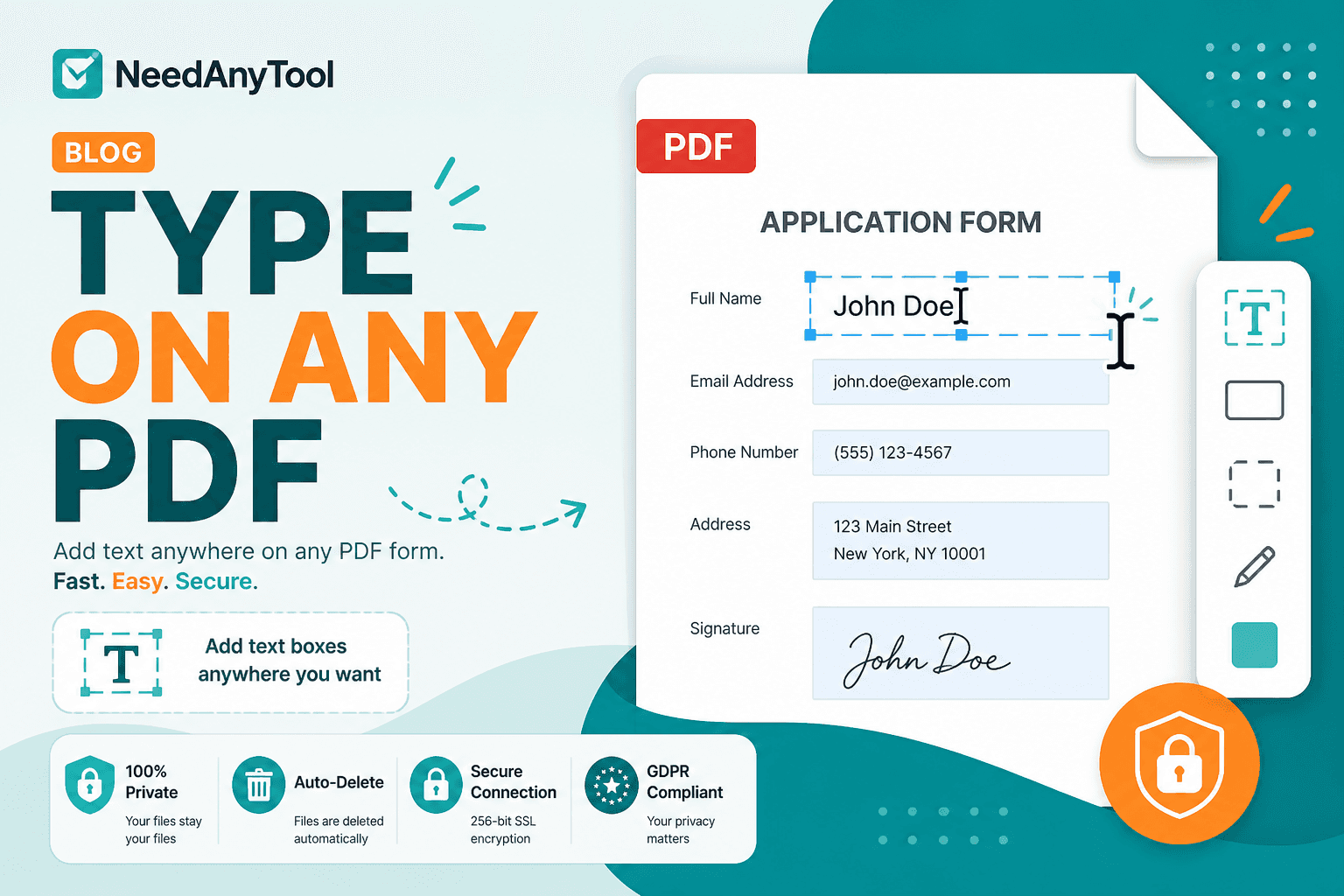
Add Text to a PDF Online
Add text to a PDF in your browser — names, dates, addresses, and notes placed exactly where you need them. No upload required.