Image Guides
How to Rotate a Photo Online — Fix Sideways Images
How to rotate a photo online free — fix a sideways image, turn horizontal to vertical, or flip horizontally/vertically in your browser. No install.
NeedAnyToolPublished Updated 2 min read
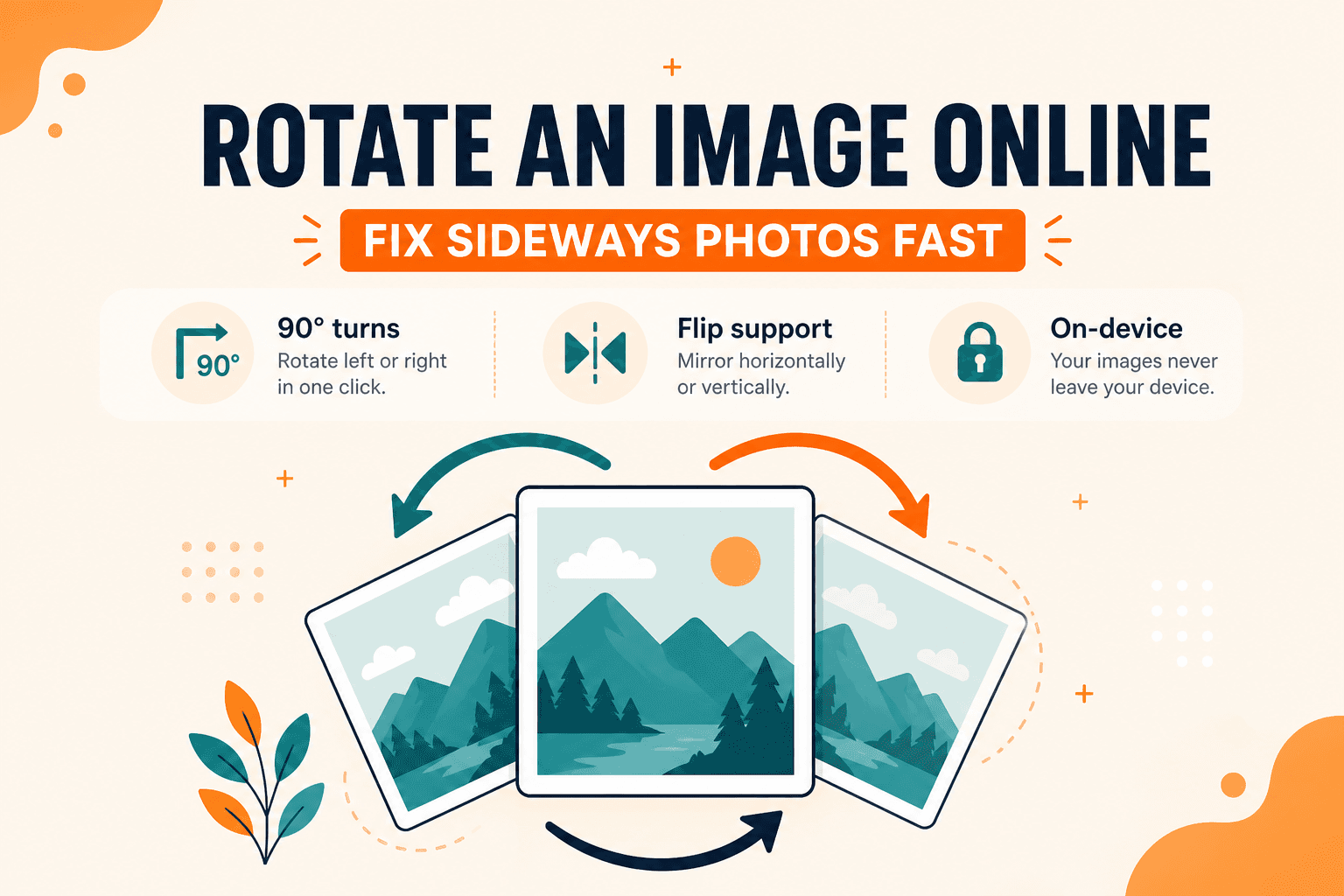
You open a photo in one app and it looks fine. Open the same file in another and everyone's lying on their side. Or you need to turn a horizontal landscape into a vertical frame (or the reverse) before uploading. You don't need to install an editor for a job this simple.
NeedAnyTool's Rotate / Flip tool turns the image in the browser — 90° steps, 180°, or horizontal/vertical flip — and lets you download the corrected file. Processing stays on your device.
Why phones save "sideways" photos
Modern cameras often store pixels in sensor orientation and write an EXIF Orientation tag so viewers know how to display the photo. Apps that honor the tag show it correctly. Apps that ignore it show the raw pixels sideways.
Baking a 90° rotate into a new file fixes the inconsistency: every app sees upright pixels, not a metadata hint some software skips. If you only need to inspect orientation metadata, the EXIF Viewer shows what's in the file. If the photo is upright but the framing is wrong, crop instead of rotating.
Rotate vs flip — they're not the same
Rotate turns the whole image around its center: 90° clockwise, 90° counterclockwise, or 180°. Text that was running up the side reads normally after a 90° step.
Flip mirrors the image. Horizontal flip swaps left and right. Vertical flip swaps top and bottom. A common mistake is flipping a passport photo "to fix it" when a 90° rotate was the real fix — that mirrors the face incorrectly.
A sensible edit order
When a photo needs more than one fix, this sequence usually wastes the least quality:
- Rotate / flip so the subject is upright
- Crop to the final framing with Crop
- Resize to the display size you actually need
- Compress or convert format last
Rotating after heavy JPEG compression can still look fine at right angles, but starting from the original and ending with one careful export is safer.
Open Rotate / Flip, choose your image, apply 90° steps or a flip, watch the preview until text and faces look upright, and download. If empty borders appeared, continue in Crop. If you only needed a smaller file, use Compress.
FAQ
Why do phone photos look sideways in some apps?
Some apps ignore EXIF orientation. Rotating here bakes upright pixels into the image so it displays consistently everywhere.
Can I rotate by a custom angle?
Not in this tool — it supports 90° increments and flips. For a tilted horizon, you'd want a desktop editor with free rotate.
Does rotate reduce quality?
A single 90° or 180° rotate saved at high quality is effectively lossless for practical viewing. Low-quality re-saves are what hurt JPEG files.
Is this the same as rotating PDF pages?
No. PDF page rotation is Rotate PDF. Use Image Rotate for photos and other image files. For multi-page PDFs that also need reordering, use Organize PDF.
Related guides
Image Guides
Adjust Photo Brightness and Contrast Online
Fix dark, washed-out, or underexposed photos in your browser. Adjust brightness, contrast, and saturation in real time with zero software installs or uploads.
Image Guides
Brighten a Dark Photo Online
Brighten dark photos online — fix underexposed shots with brightness and contrast controls. Free, private, no upload.

Image Guides
How to Create a Game Sprite Sheet Online (PNG + JSON)
How to create a game sprite sheet online — pack frames into one PNG plus a JSON map. Free browser tool for indie devs and pixel art.