Image Guides
Warm and Cool Photo Filters Online
Warm up or cool down photos with one-click filters — fix colour cast and set mood online in your browser. Free, no account.
NeedAnyToolPublished Updated 2 min read
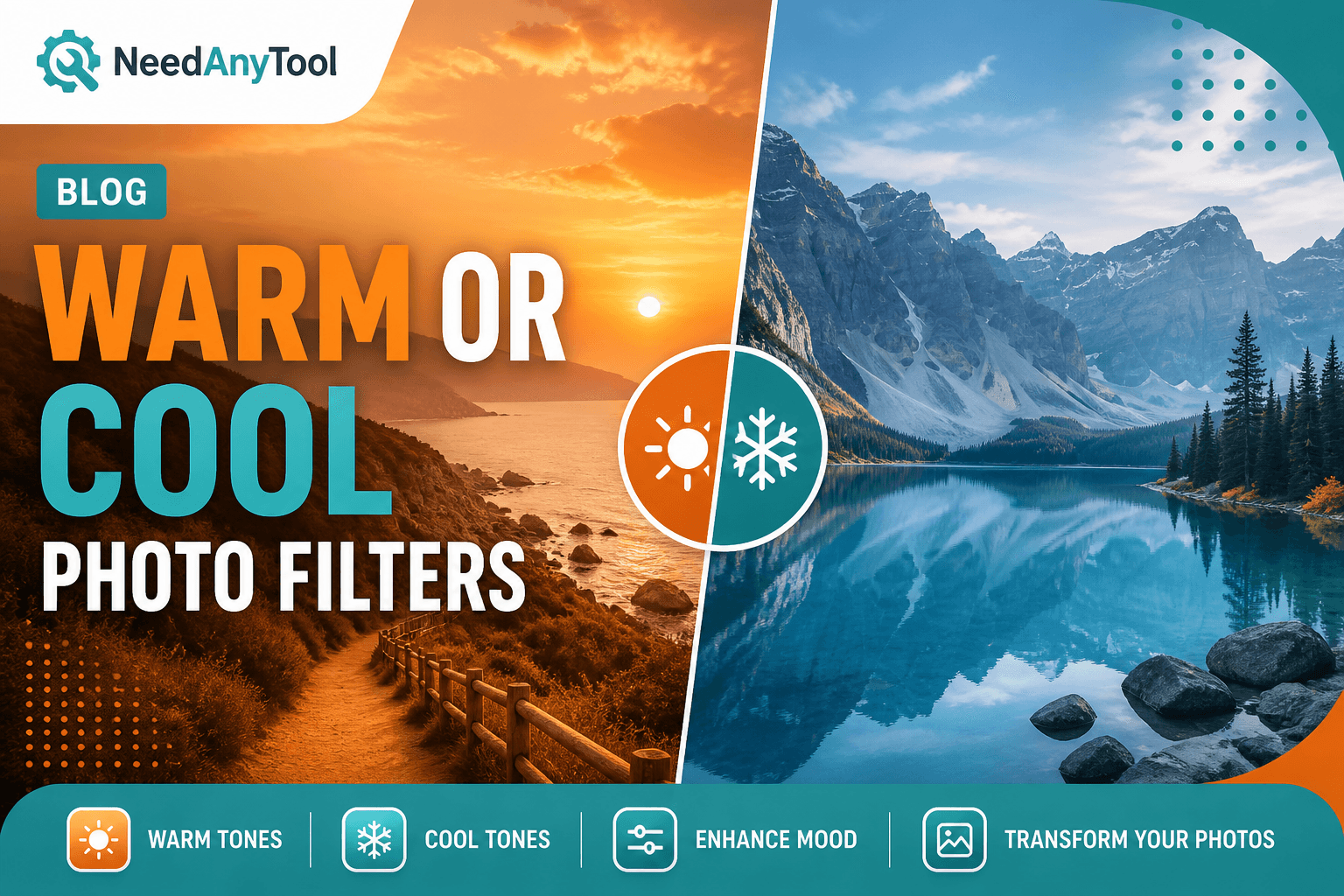
Fluorescent office lighting turns everyone slightly green. Shade on a sunny day pulls everything blue. Your phone's auto white balance tries its best and sometimes lands in uncanny valley. Colour temperature isn't just a technical fix — it's how you tell people whether a moment felt cosy or crisp before they read a single word of caption.
Photo Filters shifts temperature with presets like warm, cool, and invert. When you need finer control, pair it with Adjust.
Warm or cool — pick a direction
Go warm for sunsets, coffee shop interiors, autumn leaves, anything that should feel inviting. Go cool for winter scenes, tech products, clinical spaces where you want clean and modern.
Mixed bad white balance is trickier. Fix exposure in Adjust first, then apply a light warm or cool grade — not the other way around.
A quick workflow
Load the image, try warm and cool side by side, and save both downloads if you're genuinely torn. If the filter darkened the shot, fix that in Adjust before you call it done. Export and check on the phone screen you actually post from — laptop monitors lie about colour constantly.
Filters are creative tools. If a white wall needs to look white for a real estate listing, fix white balance in Adjust before you style the shot. Nobody wants a "warm and inviting" living room that reads as nicotine-stained.
For a whole carousel, apply the same preset to every image. Consistency matters more than picking the theoretically perfect grade on each photo individually.
After grading, Resize for social media to platform dimensions. Lock brand colours with Watermark, and check Convert JPG PNG WebP if a platform has format requirements.
FAQ
Can I fix orange indoor tungsten lighting with a warm filter?
That usually makes it worse. Try a light cool filter, or pull saturation down in Adjust.
Will skin tones stay natural?
Preview faces at 100%. If cheeks go neon, back off intensity.
Filter before or after cropping?
Crop first. Grade the frame you're actually posting.
Same filter across a whole photo set?
Yes — that's how you get a cohesive Instagram grid or product line.
Related guides

Image Guides
Vintage Photo Filter Online
Apply vintage photo filters online — sepia, faded film, and retro tones in your browser. Free nostalgic effects, no upload.

Image Guides
Apply Photo Filters Online — Sepia, Sharpen, Invert
Apply sepia, vintage, sharpen, invert, and other photo filters in your browser. Free one-click looks for JPG and PNG — nothing is uploaded.
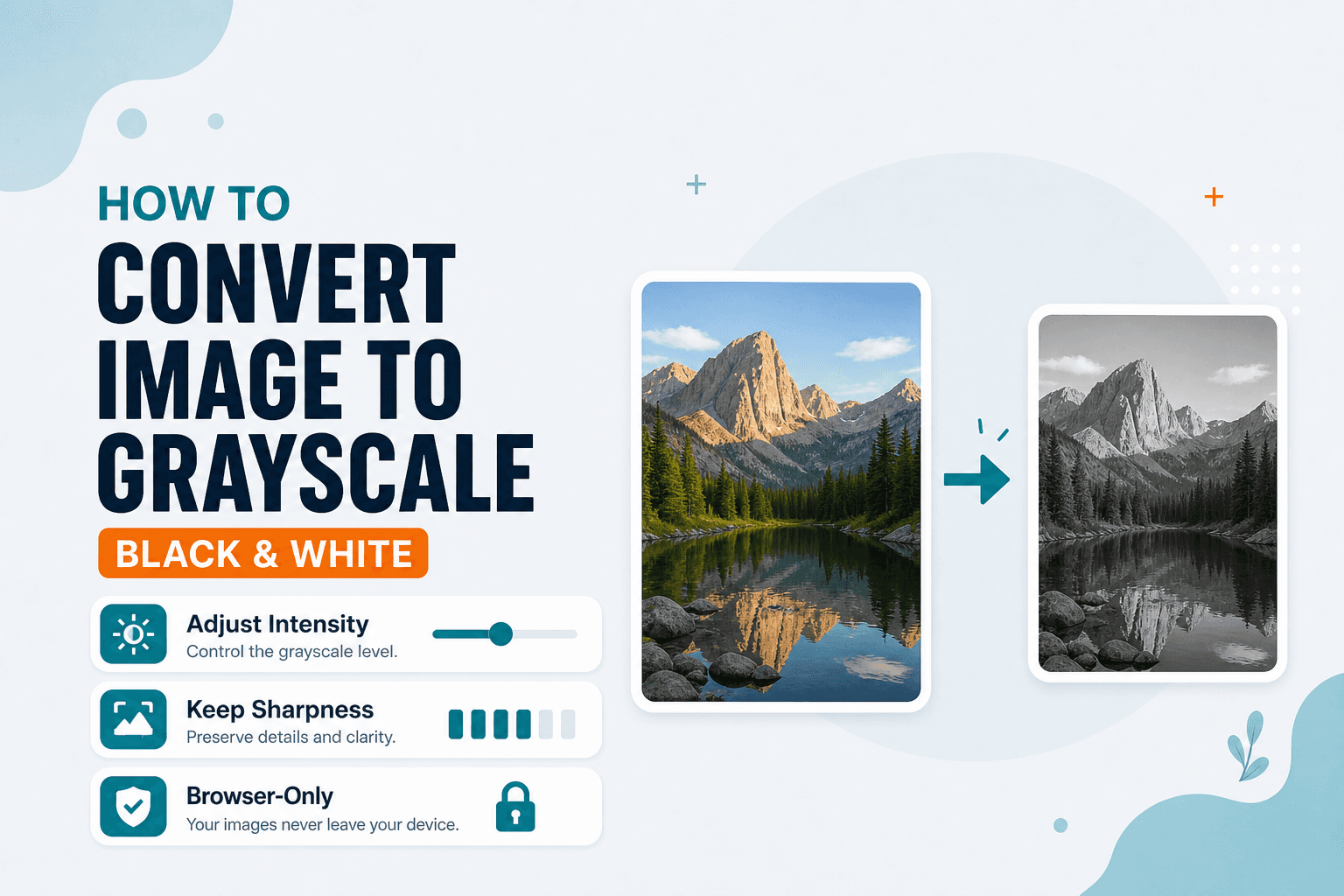
Image Guides
How to Convert an Image to Grayscale (Black & White)
How to convert an image to grayscale online — turn a color photo black and white in your browser. Desaturate JPG/PNG with no upload.