Image Guides
Apply Photo Filters Online — Sepia, Sharpen, Invert
Apply sepia, vintage, sharpen, invert, and other photo filters in your browser. Free one-click looks for JPG and PNG — nothing is uploaded.
NeedAnyToolPublished 3 min read

A filter should take ten seconds. You want the cafe photo a little warmer, the whiteboard text easier to read, or a product shot flipped so the label faces the other way. Opening a full editor for that is how a small job turns into a Saturday.
Photo Filters applies one look at a time in the browser: sepia, vintage, cool, warm, invert, sharpen, noise, or mirror. Preview it, export, done. The picture stays on your device.
Pick the filter for the job, not the name
| You need | Try |
|---|---|
| A brown, old-print tone | Sepia |
| Faded film, lifted shadows | Vintage — more on that look in vintage photo filter |
| A cooler or warmer cast | Cool or warm — see warm and cool filters |
| A negative, or a quick way to read light text on a dark UI screenshot | Invert |
| Soft type or a slightly blurry label | Sharpen |
| Grain on purpose | Noise |
| The scene facing the other direction | Mirror |
Sharpen is edge enhancement, not a new camera. It helps a mildly soft screenshot. It will not rescue a photo that was out of focus, and pushing a sharp image further just adds halos around hair and text.
Invert is a colour negative. Useful for a stencil, a quick readability check, or a graphic. It is a poor “night mode” for a portrait — skin turns the wrong colours and stays that way.
Mirror flips left and right. Text in the photo will read backwards. That is what you want for a design you will print on a transfer, and what you do not want for a street sign you meant to keep readable. For a 90° turn or a vertical flip, use Rotate instead.
Colour fixes that are not filters
Filters are presets. If the photo is simply dark, flat, or too grey, sliders are the better first move.
- Underexposed indoor shots: brighten with Adjust
- Washed-out colour: contrast and saturation, covered in fix faded colours
- A true black-and-white with a strength control: Grayscale, not sepia
You can filter after you adjust. Do the exposure first so you are not tinting a photo that is still too dark to judge.
Keep the original
One-click looks are destructive once you export. Download a new file and leave the camera original alone. If you might post the result, check faces and background text at 100% zoom — sharpen and noise both show up more on screenshots than they do in the tiny preview.
JPG export will add a little compression of its own. For a logo or a screenshot with flat colours, PNG usually holds up better. Convert if you need the other format after the filter.
Nothing in this tool uploads the photo. That matters for ID crops, unreleased product shots, and anything you would not attach to a public form.
FAQ
Can I stack sepia and sharpen?
Each export is one filter. Run sharpen, download, then open that file and apply sepia if you want both. Keep the untouched original so you can start over.
Does mirror fix a selfie camera?
It flips the whole frame horizontally. If the only problem is that you look “backwards” to yourself, mirror does that. Writing and background signs flip with you.
Will this work on a phone photo?
Yes. Large images use more memory in the tab, so a desktop browser is kinder to a 48-megapixel shot. Resize first with Resize if the tab struggles, then filter the smaller copy you actually need.
Related guides
Image Guides
Vintage Photo Filter Online
Apply vintage photo filters online — sepia, faded film, and retro tones in your browser. Free nostalgic effects, no upload.
Image Guides
Warm and Cool Photo Filters Online
Warm up or cool down photos with one-click filters — fix colour cast and set mood online in your browser. Free, no account.
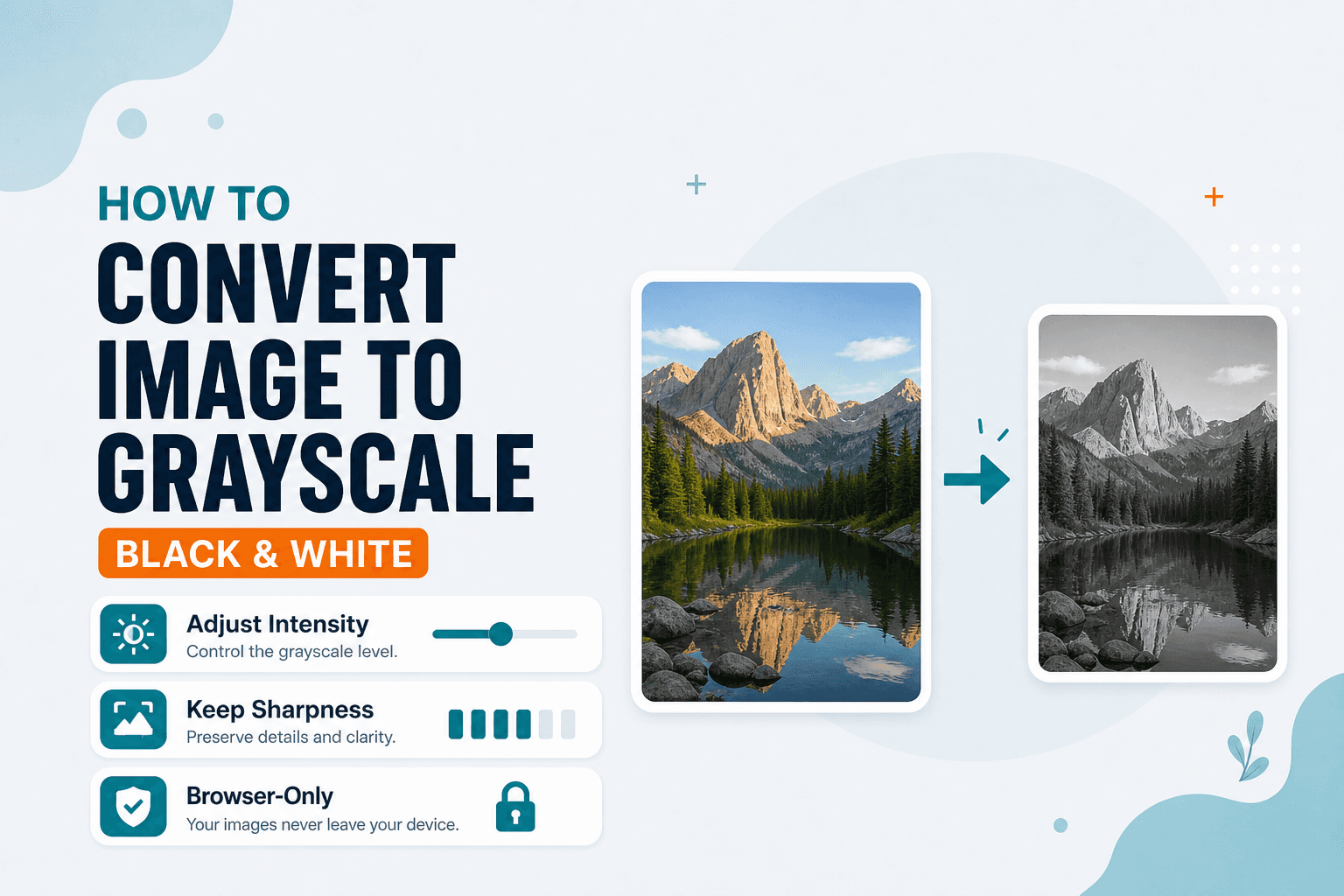
Image Guides
How to Convert an Image to Grayscale (Black & White)
How to convert an image to grayscale online — turn a color photo black and white in your browser. Desaturate JPG/PNG with no upload.