QR Guides
Test a QR Code Before You Print It
Check a QR code before it goes on a poster, menu, or sticker. Test the link, the contrast, and a phone scan so the print actually works.
NeedAnyToolPublished 3 min read
The posters arrived. The QR code is pretty. Nobody’s phone can read it. The quiet zone got cropped by the design template, the navy-on-black squares turned into one blob under cafe lighting, and the link still points at a staging URL from last Tuesday.
Printing is the expensive moment to discover that. Scanning takes a minute.
Build the code for the job, then scan that exact file
Generate the type you actually need, not a generic text code with a URL pasted in if a dedicated maker exists:
- A page: Website QR
- The shop Wi-Fi, so guests are not photographing your router: Wi-Fi QR
- A menu guests open at the table: restaurant menu QR
- A contact card: vCard QR
Download the image you will place in the design. Do not screenshot the preview at a weird zoom and trace that. Screenshots add compression and sometimes chop a module off the edge.
Then read it back. Scan Code uses the camera. Scan from Image reads the PNG you are about to send the printer, which catches a bad export even when your screen looks fine. On a phone, QR Toolkit does the same job without a laptop.
Open the result. A code that “scans” but lands on the wrong page is still a failed print run.
What makes a printed code fail
Size. A code on a business card can be small because the phone is 15 cm away. The same code on a window across a pavement needs to be large enough that the camera can see the modules. If you have to fill the frame and still cannot focus, it is too small or too far.
Quiet zone. Leave a blank margin around the code, roughly the width of a few modules. Logos, rules, and coloured panels that touch the squares make scanners guess.
Contrast. Dark modules on a light background. White on black can work. Mid-grey on beige often does not, especially once ink soaks into uncoated paper. Invert a brand colour in the design tool and scan a test print, not only the PDF on your monitor. Screens are brighter than paper.
Content length. A short URL makes a simpler code than a paragraph of text. Simpler codes tolerate smaller print and worse light. If you are encoding a long Wi-Fi password or a fat vCard, give the symbol more room.
The surface. Glass, glossy laminate, and curved bottles throw reflections. Scan at the angle a customer will actually use, under the light that will be there at night, not under your desk lamp.
A five-minute press check
- Generate and download from the matching QR tool.
- Decode the file with Scan from Image and confirm the URL, SSID, or phone number.
- Place it in the layout with a clear margin. Do not stretch it into a rectangle.
- Print one copy on the real stock, or at least on the same kind of paper.
- Scan that print with a second phone, not only the one that created it.
If step 5 fails, fix the art before you approve 200 copies. Stretching, a tinted box behind the code, and a “subtle” low-contrast brand colour are the usual culprits.
FAQ
Should I put a logo in the middle?
Only if a test scan of the final artwork still reads, on paper, with a normal phone. A logo that covers too many modules turns a working code into decoration.
The screen scan works and the print does not. Why?
Paper contrast, size, or a crop in the print PDF. Export the code as its own image, scan that file, then scan the printed sheet. The step that fails tells you whether the problem is the file or the ink.
Can I test a code from a photo someone sent me?
Yes. Scan from Image reads a picture of a code. That is also how you check a proof photo from the printer before the box ships.
17 on-device QR & barcode tools — nothing uploaded.
Related guides
QR Guides
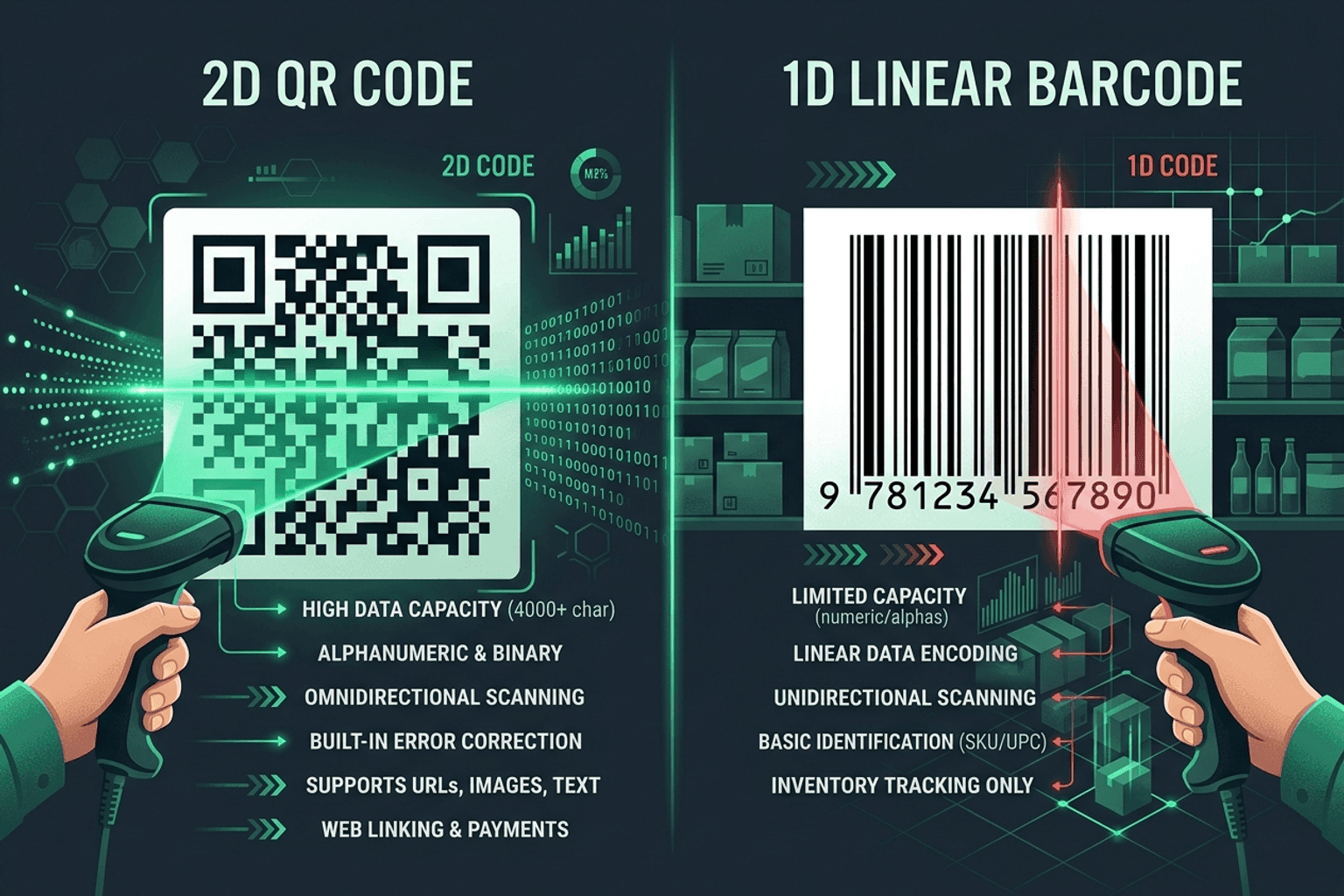
QR Code vs Barcode — Key Differences
Compare QR codes and traditional 1D barcodes across data capacity, scanning distance, error correction, and printing costs. Choose the right code for your project.
QR Guides
How to Scan a QR Code in Your Browser (Camera)
How to scan a QR code in your browser with the camera — decode codes on-device, free, no app install, no upload, no signup.
QR Guides
Scan Barcodes Live — Camera, No App
Scan barcodes and QR codes with your camera in the browser — no app install. Read product, warehouse, and event codes instantly.